Set up Membership Cancellation Templates
Use this article to standardize how memberships are canceled by configuring version-controlled cancellation templates that clearly define fees, refunds, and termination rules.
Overview
Zenoti provides a centralized, version-controlled framework for managing membership cancellations and cancellation fees. This framework provides reusable cancellation templates that help standardize cancellation behavior, control fees, and clearly surface charges and refunds during cancellation.
Cancellation Templates
A cancellation template is an organization-level configuration that groups all cancellation-related rules, including:
Cancellation fees
Buy-out fee rules
Waiver and refund behavior
Termination date handling
Templates are reusable and versioned automatically.
Cancellation fees
Cancellation fees in Zenoti is of three types: Fixed fee, Pro-rated fee, No fee.
Applicability of cancellation fees:
Prorated fee will be charged based on whichever date is earlier, the upcoming billing date (after cancellation) or the termination date.
Fixed fee is always on the termination date.
Can be fixed or calculated based on the template
Appear as a separate invoice for auditability
Configuration hierarchy
Zenoti applies cancellation rules using this hierarchy:
Level | Purpose | Control |
|---|---|---|
Organization | Global defaults | Enable templates |
Center | Overrides | Assign templates |
Membership | Product-level | Associate a template |
Cancellation Template | Rule grouping | Fees and termination |
Note
The most specific configuration always takes precedence.
Prerequisites
Ensure that membership cancellation templates are enabled for your business. Reach out to a Zenoti representative for this. Once enabled, Zenoti uses cancellation templates instead of legacy cancellation rules.
Note
Existing memberships continue using the rules captured at the time of sale. It is recommended to create cancellation templates before creating new memberships.
Create a Cancellation Template
Step 1: Access Cancellation Templates
At the organization level, go to Configuration > Memberships > Membership actions > Cancellation rules > Cancellation templates.
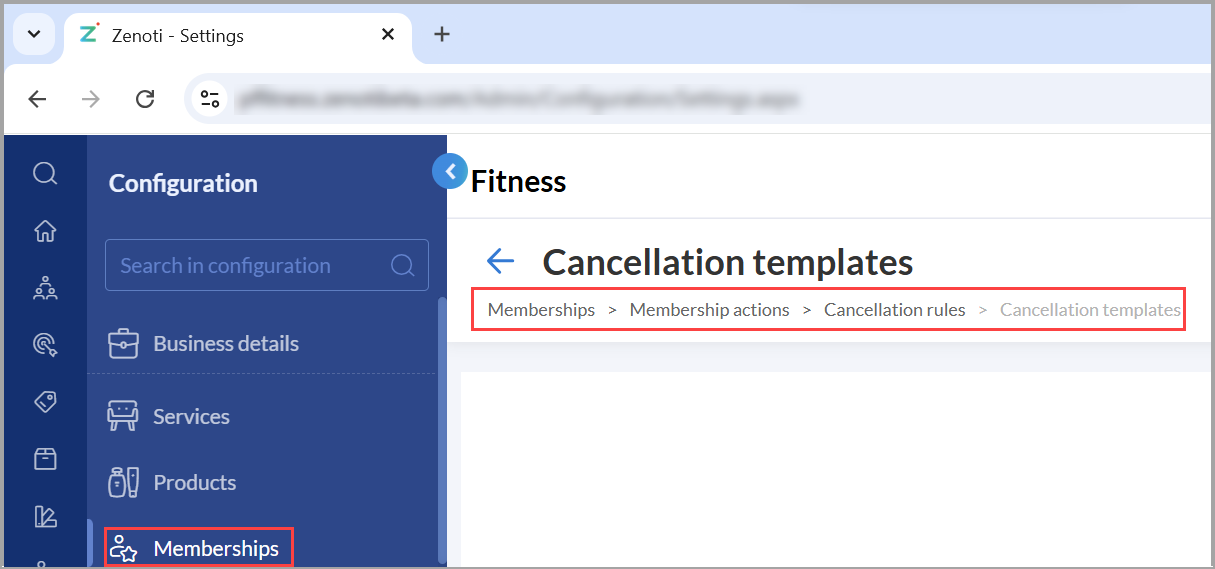
Click Add.
Step 2: Configure General Details
On the General tab:
Enter the template name and code.
Select the Template is Active checkbox to ensure the template is active.
Click Next.
Step 3: Configure Tax and Buy-Out Fee Rules
On the Lock-InRules tab:
Select the Apply Tax on Fees checkbox to apply tax to all cancellation fees.
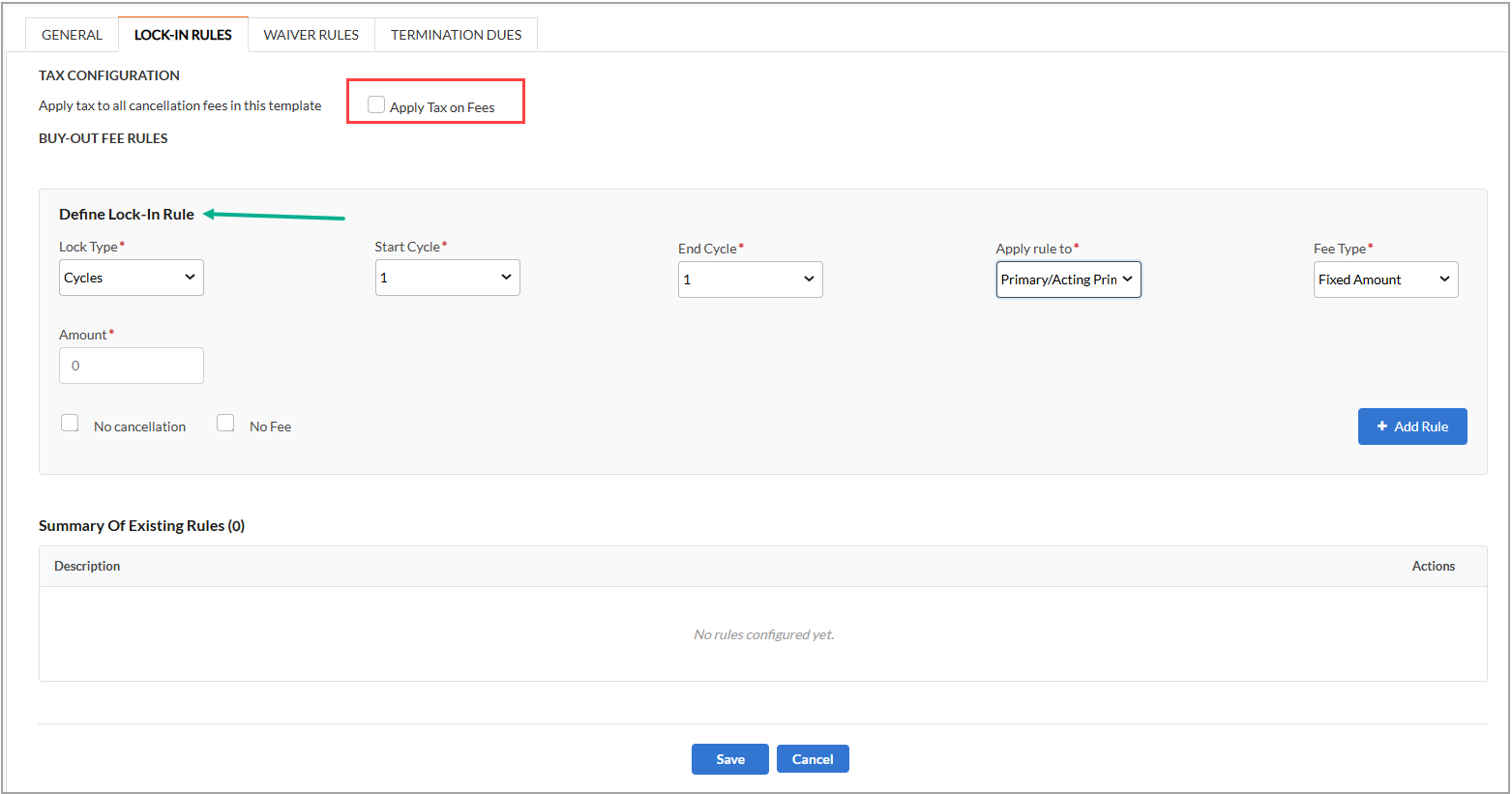
To set up buy-out fees, fill out the following fields in the Define Lock-In Rule section:
Lock Type from Cycles, Months, or Days.
Start and end points.
Select the member you wish to apply the rule to, from primary, secondary, and other member.
From the Apply rule to drop-down list, select the member to whom you want to apply the rule – Primary/Acting Primary, Add-on (Primary Eligible), or Add-on (Non-Primary).
Important
This option is applicable only for family memberships. If you do not see this option, please reach out to your Zenoti representative.
Select the Fee Type from Fixed Amount, Percentage of Remaining, or Center Level Buyout Fee. Enter the amount or percentage as required.
To disallow cancellation of membership, select the No cancellation checkbox.
To allow cancellation without any fees, select the No Fee checkbox.
Click +Add Rule after selecting the values.
Review the summary and click Save.
Important
Updating buy-out rules creates a new version and applies only to new memberships.
This tab is available on ZMA also.
Step 4: Configure Waiver and Refund Rules
On the Waiver Rules tab:
To allow members to request refunds within a specific time frame after purchase, turn on the Allow membership refund for cancellation within a specified time toggle.
Specify the number of days from sale eligible for refunds.
Choose the refund type: Full Refund or Prorated Refund.
To refund other fees such as setup fee, annual fees, and so on, turn on the Refund Other Fees toggle.
Click Save.
Note
Waiver logic applies only within the configured refund window.
Step 5: Configure Termination Rules
On the Termination Rules tab:
Turn on the Enable Cancellation Rules for termination toggle to apply cancellation rules for termination also.
Select from one of the following: No Fee, Proration of final bill, and Fixed Fee. In case of Fixed Fee, enter the fixed fee amount.
Click Save.
Assign a Cancellation Template to a membership
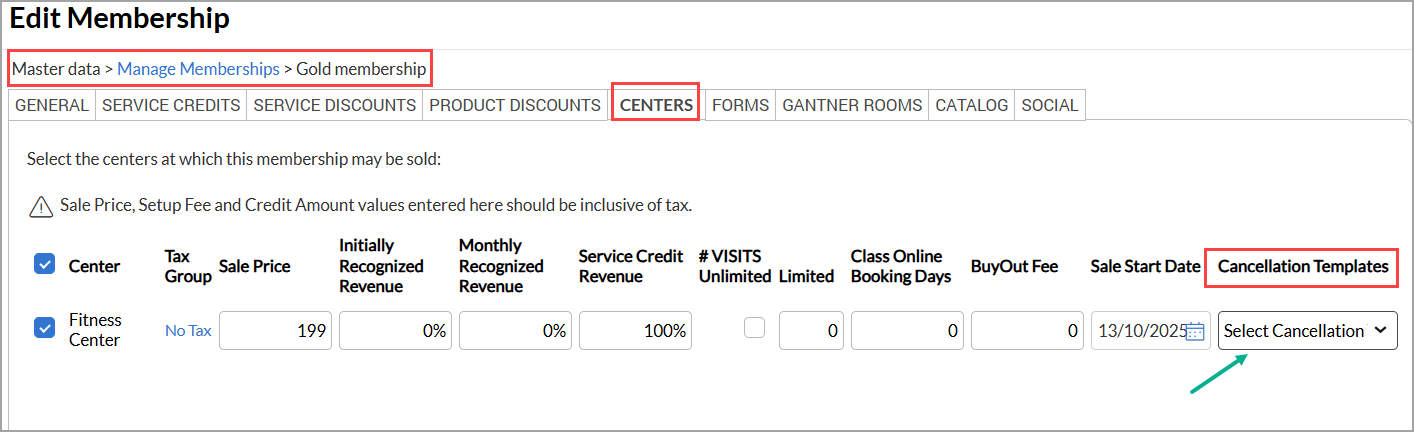
Assign at Membership Level
On the cancellation summary window, the following information is displayed:
Pending dues
Cancellation fees
Buy-out fees
Annual fees (if applicable)
Refunds or credits
Invoicing Behavior
Zenoti generates separate invoices for each cancellation component:
Component | Invoice Type |
|---|---|
Pending dues | Existing invoice |
Cancellation fee | New invoice |
Buy-out fee | New invoice |
Annual fee | New invoice |
Refunds | Credit note or refund |
Role-Based Overrides
You can grant role permissions to:
Override cancellation fees
Override buy-out fees
Override annual fees
Override waiver refunds
Note
Overrides do not change the stored template version.