Guest search
Set up guest search across all centers
This article explains how to set up guest search so front‑desk staff can quickly find and verify guests when booking appointments. It also helps prevent duplicate profiles, especially for guests who visit multiple centers. It covers cross‑center search, search scope, auto‑suggest, guest details in the booking panel, booking behavior, and FAQs.
Overview
Guest search settings determine how staff locate and identify guests during appointment creation. Enabling cross‑center search helps reuse the same guest profile across centers, reduces duplicates, and lets staff see a guest’s home center directly from search results.
Key terms
Guest: An individual with a guest profile in your system.
Center: A location where appointments are booked and serviced.
Home center: The guest’s primary center; shown in search to help identify profiles.
Organization: Your full company account spanning all centers.
Zone: A defined subset of centers within the organization.
Search scope: The reach of cross‑center search—either across the Organization or within a selected Zone.
Booking panel: The appointment creation screen where staff review guest details.
Auto‑suggest: A setting that shows suggested guest names after pressing Enter.
Prerequisites
Admin access to Configuration with permission to edit Appointment and Queue Management → Personalization → Guest search.
Your centers are organized into the correct Zone(s) (if you plan to use Zone scope).
A decision on which guest metric (Total spend or Total visits) to surface in the booking panel.
Note
Cross‑center results appear only if Search for guests across centers is enabled.
The search scope (Organization vs Zone) determines how widely staff can search.
These settings affect lookup behavior only; they do not change guest data ownership.
For system‑wide constraints, also review your System Limits documentation.
Configure cross‑center guest search
Use this when you want staff in one center to find and book existing guests from other centers.
At the organization level, click the Configuration icon.
Navigate to Appointments → Personalization → Guest search.
Turn on Search for guests across centers toggle.
Note
After enabling cross‑center search, choose how far staff can search:
Organization: Allows searching for guests across all centers
Zone: Allows searching only within the selected zone
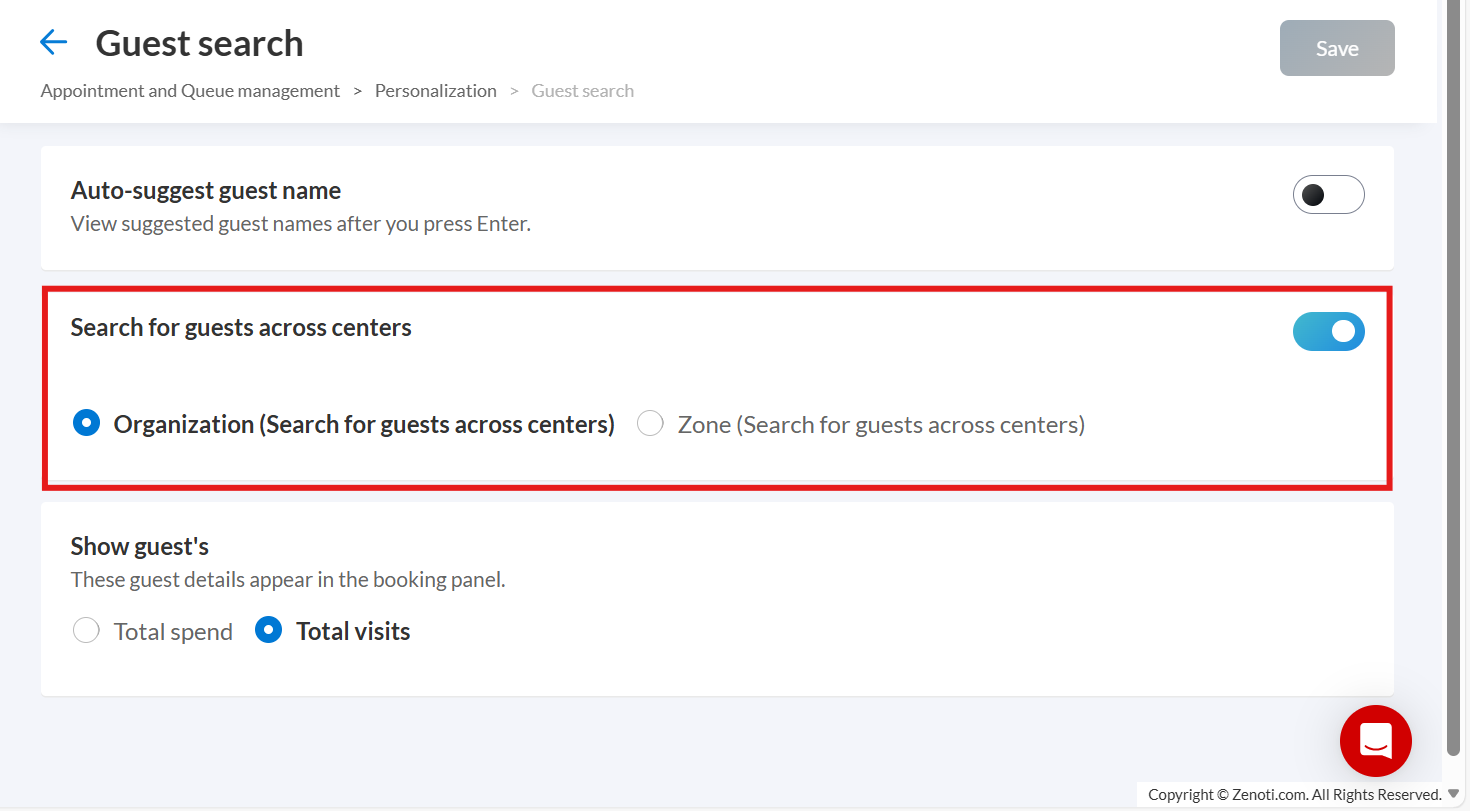
Click Save.
Configure additional search settings
Auto‑suggest guest name
What it does: Shows suggested guest names after you press Enter while searching, speeding up lookup.
To enable: In Guest search, turn on Auto‑suggest guest name toggle and click Save.
Show guest details in the Booking Panel
Choose one metric to help staff identify high‑value or frequent guests during booking:
Total spend
Total visits
To configure: In Guest search, select the preferred option under Guest details in Booking Panel, then click Save.
How guest search works during booking
When Search for guests across centers is enabled:
Staff can search for guests from other centers while creating appointments.
Guests from other centers are clearly identifiable in the results.
The guest’s home center is visible from search results (via an indicator or hover text, if available).
Reusing the same guest profile across centers helps prevent duplicate profiles.
Troubleshooting
Why can’t I find guests from other centers?
Confirm Search for guests across centers is enabled.
Check the search scope (Organization vs Zone) and make sure the guest belongs to that scope.
Click Save after changing settings.
How can I tell which center a guest belongs to?
Guests from other centers are marked with a center indicator in results.
Hover over the indicator (if available) to see the home center.
Why do I only see guests from my own center?
The scope may be Zone, and the guest may be outside that zone.
Set scope to Organization to search across all centers.