Manage Employee Leave Requests
This article explains how managers and admins review and act on employee leave requests.
Before you begin, ensure the following:
Leave management is enabled for your organization.
Note
This feature is currently in beta and can be enabled only by the Zenoti product team.
Overview
Managers can approve or deny leave requests submitted by employees from the MyZen app. Approval access is based on role permissions rather than reporting hierarchy.
Watch videos:
Prerequisites and role permissions
Action | Permission | Typical Role |
|---|---|---|
Approve other employees’ requests | Approve Time Off | Manager / Admin |
Approve your own requests | Self-Approve Time Off | NA |
Note
You need access to Leave management.
Steps to approve or deny leave requests
Follow these steps to approve or deny leave requests:
Click Employees from left side main menu.
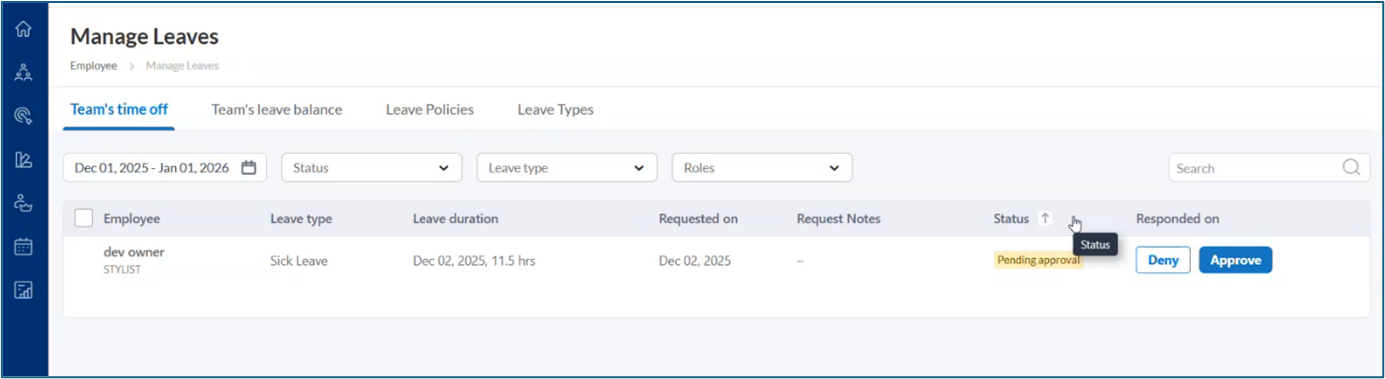
Go to Leave Management > Team’s time off.
Use filters to narrow down the list of requests:
Date filter: Select current month, last month, or a custom date range.
Status filter: Filter by Approved, Denied, or Pending Approval.
Leave Type filter: Display requests for a specific leave type.
Role filter: Display requests based on employee roles.
Search bar: Search for an individual employee by name.
Review requests with Pending approval status.
Select Approve or Deny.
(Optional) Add notes and confirm.
Note
When a leave is approved:
The employee’s PTO balance updates automatically.
A block is placed on the appointment book for the approved period.
When a leave is cancelled (by approver or employee, if allowed):
The leave balance is adjusted automatically.
The appointment book block is removed.
Bulk approve or deny leave requests
You can process multiple leave requests at once.
Follow these steps:
Navigate to Employees > Leave Management > Team's time off.
Use filters to display the relevant requests.
Select the checkboxes next to the employees whose requests you want to process.
Select the action to perform: Approve or Deny.
Confirm the action.
Cancel approved leaves
Follow these steps to cancel an approved leave:
Navigate to Employee > Leave management > Team’s time off.
Locate an Approved leave request.
Select the request.
Choose Cancel.
Confirm the cancellation.
After cancellation, the system automatically restores the employee’s PTO balance, removes the schedule block, and updates the request status.
Create Leave request on behalf of employee
Managers can submit leave requests for employees when needed.
Note
This option appears only if you have permission to view team leave balances.
Follow these steps:
Navigate to Employee > Leave management > Team’s leave balance.
Open the Team’s leave balance tab.
Locate the employee.
Select Create Leave Request for the employee.
Choose the leave type and dates.
Review and edit the hours if required.
Submit the request.
The request follows the standard approval process, and the employee’s PTO balance updates automatically after approval.
Frequently asked questions (FAQs)
Q. Does approval affect schedules?
A. Yes. Approved leave creates a block on the appointment book.
Q. Can I approve my own request?
A. Only if your role allows self-approval.
Q. Can I cancel any approved leave?
A. You can cancel approved leaves if your role allows leave management actions.
Q. Does cancelling leave affect payroll and schedules?
A. Yes. Cancelling an approved leave restores the leave balance and removes the schedule block.
Q. Can I create leave requests for all employees?
A. You can create requests only for employees you have access to in Team’s leave balance.
Q. Can I approve or deny multiple requests at once?
A. Yes. Select multiple requests using the checkboxes and choose Approve or Deny to process them in bulk.
Key terms
Term | Description |
Leave Request | Time off submitted for approval |
Pending approval | Status awaiting action |
Appointment Book Block | Schedule block created after approval |
Manage Leaves | The central screen where managers handle employee leave actions |
Team’s time off | Tab used to review, approve, deny, or cancel leave requests |
Team’s leave balance | Tab used to view balances and create requests on behalf of employees |
Cancel Leave | Reversing an approved leave request |
Bulk Action | Processing multiple leave requests (approve or deny) simultaneously |