Monitor Form Submission Rates Using the Submission Tracking Dashboard
This article explains how to access and use the Submission Tracking dashboard to monitor form completion rates across providers, centers, and services.
Overview
The Submission Tracking dashboard helps managers and admins monitor how effectively providers are submitting required forms. By tracking real-time submission rates, you can identify gaps in form completion, ensure readiness for compliance reviews, and support operational efficiency across Medspa locations.
This tool is especially helpful when managing large teams across multiple centers, giving you a consolidated view of submission performance and review eligibility.
Prerequisites
Role permissions to view the Submission Tracking dashboard
To grant a user permission to view the Submission Tracking dashboard, follow these steps:
At the organization level, click the Configuration icon.
Navigate to Security > Security roles.
Select a role and click the Permissions tab.
Expand the Appointment Book section, and for Form Compliance, select the View Submission Tracking checkbox.
Access the Submission Tracking dashboard
At the organization level, navigate to Medical hub > Submission tracking.
Note
The dashboard displays submission data for a single selected center, for up to 15 days.
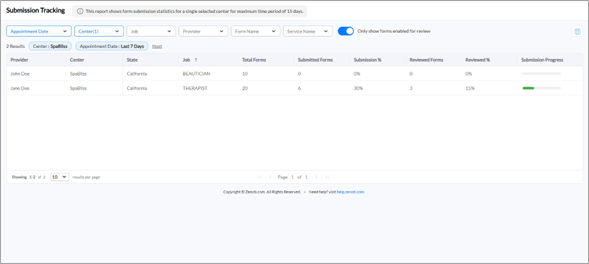
Use the following filters to further refine the dashboard view:
Appointment Date
Center
Job
Provider
Form Name
Service Name
Turn on the Only show forms enabled for review toggle to only display forms that are enabled for review.

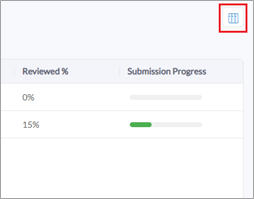
Click Select column to display at the top-right corner to manage the visibility and display order of the columns in the dashboard.
Column descriptions
Column | Description |
|---|---|
Provider | Name of the service provider associated with the forms |
Center | Name of the provider’s center |
State | Name of the state in which the center is located |
Job | Job role of the service provider |
Total Forms | The total number of forms associated with the provider |
Submitted Forms | The number of forms submitted by the provider |
Submission % | The percentage of forms submitted out of total |
Reviewed Forms | Number of forms that have been reviewed (Visible only if toggle is ON) |
Reviewed % | The percentage of forms that have been reviewed (Visible only if toggle is ON) |
Submission Progress | Visual bar showing submission completion rate |