Create and assign leave policies
This article explains how to create leave policies in Zenoti. It covers defining leave types, configuring accrual and payout rules, activating policies for centers, and making them available for employee mapping.
Overview
Leave policies define how Paid and Unpaid Time Off is earned, carried forward, and paid out. You can create leave policies at the zone or center level (based on assigned permissions), configure all required leave types and rules.
A single leave policy can include multiple leave types (for example, Sick, Vacation, Personal, or Unpaid), each with its own accrual logic.
Key points
A leave policy can be assigned to one or more centers.
An employee can be associated with only one leave policy at a time (per center).
Multiple leave types (for example, Sick Leave and Vacation Leave) and their respective accrual logic can be configured within the same policy.
If a leave policy is created at the organization or zone level, it can be assigned to one or more centers. If created at the center level, it is automatically mapped to that center.
Watch videos:
Prerequisites
Before you begin, ensure the following:
Leave Management is enabled for your organization.
Note
This feature is currently in beta and can be enabled only by the Zenoti product team.
You are assigned a role with Leave Policy – Add, Edit, and Delete permissions.
The centers you want to assign already exist in the system.
Create a leave policy
Follow these steps to create a leave policy:
Go to Employees > Leave Management > Leave Policies.
Click Create a policy.
Enter a Policy Name and Description based on how leave eligibility is defined in your business (for example, Leave policy – Less than 1 year, Leave policy – Full-time employees).
Add one or more leave types to the policy.
Zenoti provides a default list of leave types such as Sick Leave, Vacation Leave, Personal Leave, and Unpaid Leave. Select only the leave types you want to offer to employees.
How to structure leave policies (Use case) If your business offers different leave benefits based on years of service, configure tenure brackets within the same leave policy instead of creating separate policies.
Example:
0–1 year: Sick Leave accrues 1 hour for every 40 hours worked
1–3 years: Sick Leave accrues 1 hour for every 30 hours worked
3+ years: Sick Leave accrues 1.5 hours for every 30 hours worked
As employees move between tenure ranges, Zenoti automatically applies the corresponding accrual and compensation rules. Employees remain mapped to the same leave policy.
You can configure multiple tenure brackets for accrual and compensation logic within the same leave policy.
Configure leave type rules For each leave type added to the policy, configure how time off is earned, carried forward, and paid.
Configuration options
Setting
What this controls
Available options and behavior
Paid Time Off
Determines whether the leave type is paid or unpaid.
• Paid: Leave hours are compensated and included in payroll.
• Unpaid: Leave hours are tracked but not paid.
Accrual method
Defines how leave balance is granted to employees.
Upfront
• Per year: Grants a fixed annual balance when the policy starts.
• Per week: Grants a fixed weekly balance (select a week start day).
Accrual-based
• Hours worked: Accrues leave based on hours worked (for example, 1 hour for every 30 hours worked).
• Tenure-based (weekly):Grants leave upon completion of each week of tenure.
Accrual reset
Specifies when leave balances reset.
• Employee anniversary date: Resets individually based on each employee’s start date.
• Fixed date: Resets on a common date for all employees (for example, January 1 or fiscal year start).
Carry forward
Controls how unused leave is handled at reset.
• None: Remaining balance lapses at reset.
• Limited: Carry forward up to a defined cap.
• Unlimited: Carry forward all unused balance.
Payout on termination
Determines whether unused PTO is paid when employment ends.
• Yes: Unused PTO is automatically included in automated earnings calculation of employee’s base center
• No: Payout decisions are handled on a case-by-case basis.
Compensation for Paid Time Off
Defines how PTO pay is calculated for paid leave types.
• Hourly rate: Uses the employee’s configured hourly rate from their profile.
• Fixed pay: Uses a fixed hourly rate defined in the leave policy.
Allow negative leave balance
Controls whether employees can apply leave beyond their available balance.
• Yes: Employees can apply leave even if their balance goes negative.
• No: Employees cannot apply leave once their balance reaches zero.
Maximum leave hours per day
Defines the maximum number of leave hours an employee can apply in a single day.
Enter the maximum number of hours allowed per day.
Annual accrual limit
Sets a cap on the total leave an employee can accrue in a year.
• No Cap
• Set Cap: Define the maximum accrual limit.
Annual leave usage limit
Sets a cap on the total leave an employee can use in a year.
• No Cap
• Set Cap: Define the maximum usage limit.
Note
The Blended average option for payout compensation is not supported in Zenoti Leave Management.
When tenure-based configuration is selected, you can define multiple service ranges (for example, 0–1 year, 1–3 years) within the same policy. For each tenure range, configure separate accrual and compensation rules. Ensure that the uppermost tenure bracket has Unlimited selected in the To column so that all employee tenures are covered.
Note
For employees who do not clock in and out (for example, payroll managers or accountants), select the Upfront or fixed balance option to grant the leave balance at the start of the defined period.
Review all configured leave types and rules to ensure the accrual, carry-forward, payout, and compensation settings are correct.
Click Save and Proceed to continue with next steps of assigning centers and employees.
Click Save and Close to create the leave policy and skip the next steps for the time-being to resume later.
Assign centers to a leave policy
After a leave policy is created, assign it to one or more centers to make it active.
You can assign centers in two ways:
Click Continue after saving the policy to proceed to the next steps.
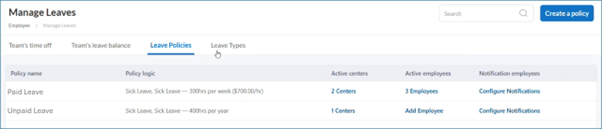
From the Leave Policies tab, use the Active Centers column.
Follow these steps:
Select the required policy.
Click Add Center (if no centers are mapped) or click the number in the Active Centers column.
Click Manage Centers.
Select the centers where the leave policy should be active.
Click Update.
Note
Different centers can use different leave policies.
Assigning a center makes the policy available for employee mapping.
Only roles with organization-level permissions can create or assign leave policies.
Assign employees to a leave policy
After centers are assigned, map employees to the leave policy.
Follow these steps:
Navigate to the Leave Policies tab.
Locate the policy. The Active Employees column shows the number of employees already mapped, or displays Add Employee if no employees are mapped.
Click the Active Employees count or Add Employee.
Click Add Employees.
Use the filters to list employees by center, job, or tenure (in years and months).
Select the checkbox next to the name of each employee you want to assign.
Click Update to confirm the mapping.
Note
You can only select employees who are not already mapped to another leave policy.
An employee can be associated with only one leave policy at a time.
Multiple filters can be used together to narrow down the employee list.
Edit a leave policy
You can edit leave policy parameters at any time — including after employees have been linked to the policy. Changes apply prospectively and do not affect historical leave balances or previously processed transactions.
What you can edit
For each leave type within a policy, the following parameters are editable at any time:
Setting | What you can change |
Accrual method | Switch between Upfront, Hours worked, or Tenure-based |
Accrual frequency and rates | Update how often leave accrues and at what rate |
Carry forward | Change between None, Limited, or Unlimited; update carry-forward caps |
Annual accrual limit | Update or remove the accrual cap |
Annual leave usage limit | Update or remove the usage cap |
Eligibility rules | Update tenure brackets and ranges |
Accrual reset | Change between Employee anniversary date and Fixed date |
Add a leave type to an existing policy
1. Go to Employees > Leave Management > Leave Policies.
2. Open the policy you want to update.
3. Click Add Leave Type and select from the available options.
4. Configure the accrual, carry-forward, and payout rules for the new leave type.
5. Click Save.
The new leave type becomes active from the next scheduler run.
Remove a leave type from an existing policy
1. Open the leave policy.
2. Next to the leave type you want to remove, click Remove.
3. Confirm the removal.
On removal:
No new accruals occur for the removed leave type from the next scheduler run.
Existing balances and all historical records remain available for reporting and audit purposes.
When changes take effect
Updated parameters apply from the next relevant scheduler run — for example, the next accrual run or carry-forward run. No historical leave balances or past transactions are recalculated.
Configure leave request notifications
You can add employees who receive notifications when leave requests are submitted.
Follow these steps:
In the Leave Policies tab, locate the policy.
Click Configure notifications under the Notification Employees column.
Click Manage Notifications.
Select the center (only centers mapped to the leave policy are shown).
Select the employees from the dropdown who should receive notifications.
Click Apply.
Click Update to confirm the changes.
Frequently asked questions (FAQs)
Q. Can I create separate policies for Sick Leave and Personal Leave?
A. No. Add multiple leave types under a single policy.
Q. Can different centers use different leave policies?
A. Yes. You can assign different policies to different centers.
Q. Can I edit accrual rules after employees are assigned?
A. Yes. All leave policy parameters — including accrual method, accrual rates, carry-forward rules, accrual caps, and eligibility rules — can be edited at any time, regardless of whether employees are linked to the policy. Changes apply prospectively from the next scheduler run and do not affect historical leave balances or processed transactions.
Q. Can I edit accrual rules after employees are assigned?
A. Only limited, non-accrual-impacting fields can be edited.
Q. Can PTO pay be calculated using commissions or blended rates?
A. No. PTO compensation currently supports only hourly rate or fixed rate calculations.
Q.If an employee reaches a tenure milestone, will they need to be reassigned to another leave policy?
A. No. When tenure brackets are configured within the same leave policy, Zenoti automatically applies the appropriate accrual and compensation rules as the employee moves between tenure ranges. Manual policy reassignment is not required.
For more information, refer to the Migrate an employee from one leave policy to another article.
Term | Definition |
Leave Policy | A set of rules that define how time off is accrued, carried forward, paid out, and applied to employees. |
Leave Type | A category of leave within a policy, such as Sick, Vacation, or Unpaid. |
Accrual Method | How leave is earned (upfront, per year, per week, hours worked, or tenure-based). |
Accrual Reset | The point when leave balances reset—employee anniversary or a fixed date. |
Carry Forward | The amount of unused leave that can move into the next cycle. |
Payout on Termination | Determines whether unused PTO is paid out when employment ends. |