Neill Electronic Ordering
This article explains how to enable and use Neill Electronic Ordering in Zenoti to submit purchase orders directly to Neill for supported vendors.
Overview
Neill Electronic Ordering allows you to:
Submit purchase orders electronically to Neill
Order products fulfilled by:
Neill Corp – Aveda
Neill Fulfillment
Track submission status and resolve item-level errors within Zenoti
Zenoti submits the order electronically to Neill. Order confirmations are sent by Neill via email to the center.
Note
Neill accepts only Neill vendor codes — not standard Aveda UPC codes — on purchase order line items. Make sure each Zenoti product that you order from Neill carries the matching Neill vendor code as its product code; otherwise Neill rejects the line.
Enable at organization level
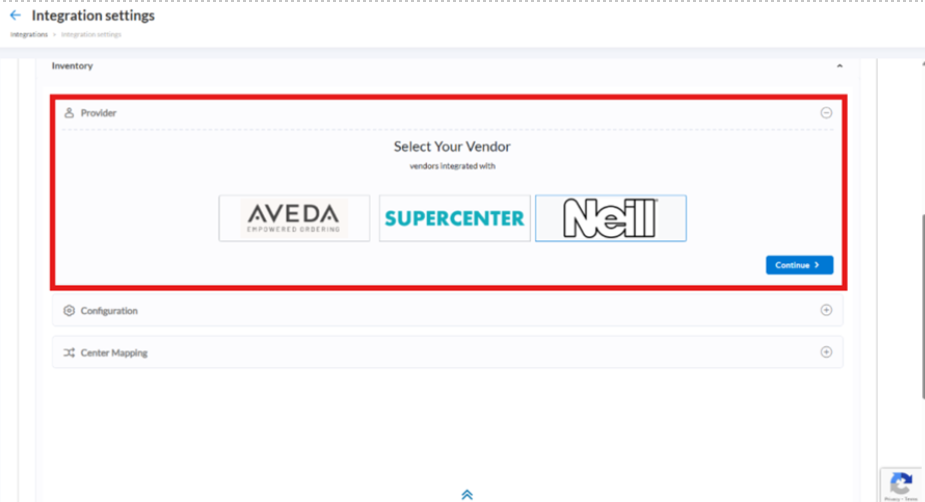
The integration is configured on a single integration settings screen across three stages: select Neill as the provider, enable the fulfillment routes you need (Configurations tab), and map each center to its Neill identifier (Center mapping tab).
Select Neill as the provider
At the organization level, click Configurations .
Select Integrations.
Expand the Inventory tab under Integrations.
Click the Provider tab and select Neill.
Enable fulfillment routes (Configurations tab)
Click the Configurations tab.
Enable the route(s) that match your agreement with Neill:
Neill Corp – Aveda: If your agreement covers Aveda product orders fulfilled through Neill
Neill Fulfillment: If your agreement covers Neill Fulfillment
Note
Some organizations have agreements that cover both routes. If you are not sure which applies to you, contact your Neill representative.
Map each center (Center mapping tab)
Click the Center mapping tab.
Use the arrow to expand Neill Corp – Aveda.
Enter the Location ID for the center, as provided by Neill.
Note
The Neill Location ID/Customer ID is not the SAP ID used for Aveda Empowered Ordering. The SAP ID does not work for the Neill integration. If you only have your Aveda SAP ID on file, request the Neill Customer ID from your Neill representative.
Click Save.
If you also enabled Neill Fulfillment, expand Neill Fulfillment and repeat the steps above for each center.
After all centers are mapped, click Save to finalize the integration.
Once enabled, Neill vendors become available in Purchase Order flows.
Note
If you have both Neill Corp – Aveda and Neill Fulfillment enabled, the same Customer ID often applies to both routes — but in some cases the IDs differ. Confirm with your Neill representative which Customer ID to use for each route before mapping.
Product requirements
Before placing orders with Neill, you must manually map each product in Zenoti to its Neill vendor code.
In the Product Master, enter the Neill vendor code as the product code for every product you want to order from Neill. Zenoti does not perform this mapping for you.
Associate each product with the correct Neill vendor — Neill Corp – Aveda or Neill Fulfillment.
Neill validates orders against vendor codes only, not against standard Aveda UPC codes. Orders are rejected if the product code in Zenoti does not match Neill's vendor code.
Create and submit a purchase order
Go to Inventory > Orders.
From the I want to dropdown, select Add Order.
From the Vendor dropdown, select your configured Neill vendor (for example, Neill Corp – Aveda).
Add the products and enter the required Retail and Consumable quantities.
Click Review Order.
Review the order summary, then click Save and Continue.
Raise the purchase order.
Click Send to Neill Corp to transmit the order electronically.
You will receive a Neill order number and your tax invoice will be sent to your email.
Before submission, Zenoti validates:
Vendor is enabled
Center has the correct Location ID
All items have Neill Product Codes
PO is not empty
Order status and errors
After submission, the PO status will be updated in the Integration Status column on the Order screen.
SENT TO NEILL CORP: Order successfully submitted
SOME ITEMS SENT TO NEILL CORP: Some items were not accepted
FAILED SENDING TO NEILL CORP: Submission failed
If there are errors, open the PO to view the Error Log.
Typical causes include:
Product codes don’t match Neill’s vendor codes.
The center has no Location ID mapped for the selected vendor.
The PO is empty or has invalid line items.