Manage Payroll Details for Employees in myZen
This article explains how employees can access their payroll payouts and paystubs (or pay slips) using the myZen mobile app.
Overview
Zenoti Integrated Payroll helps employees to efficiently handle personal, tax, and payroll preferences while accessing paystub or pay slip information.
Access Zenoti Integrated Payroll
To access Zenoti Integrated Payroll from myZen:
Log in to the myZen app.
Tap Menu at the bottom right.
Tap Payroll Details.
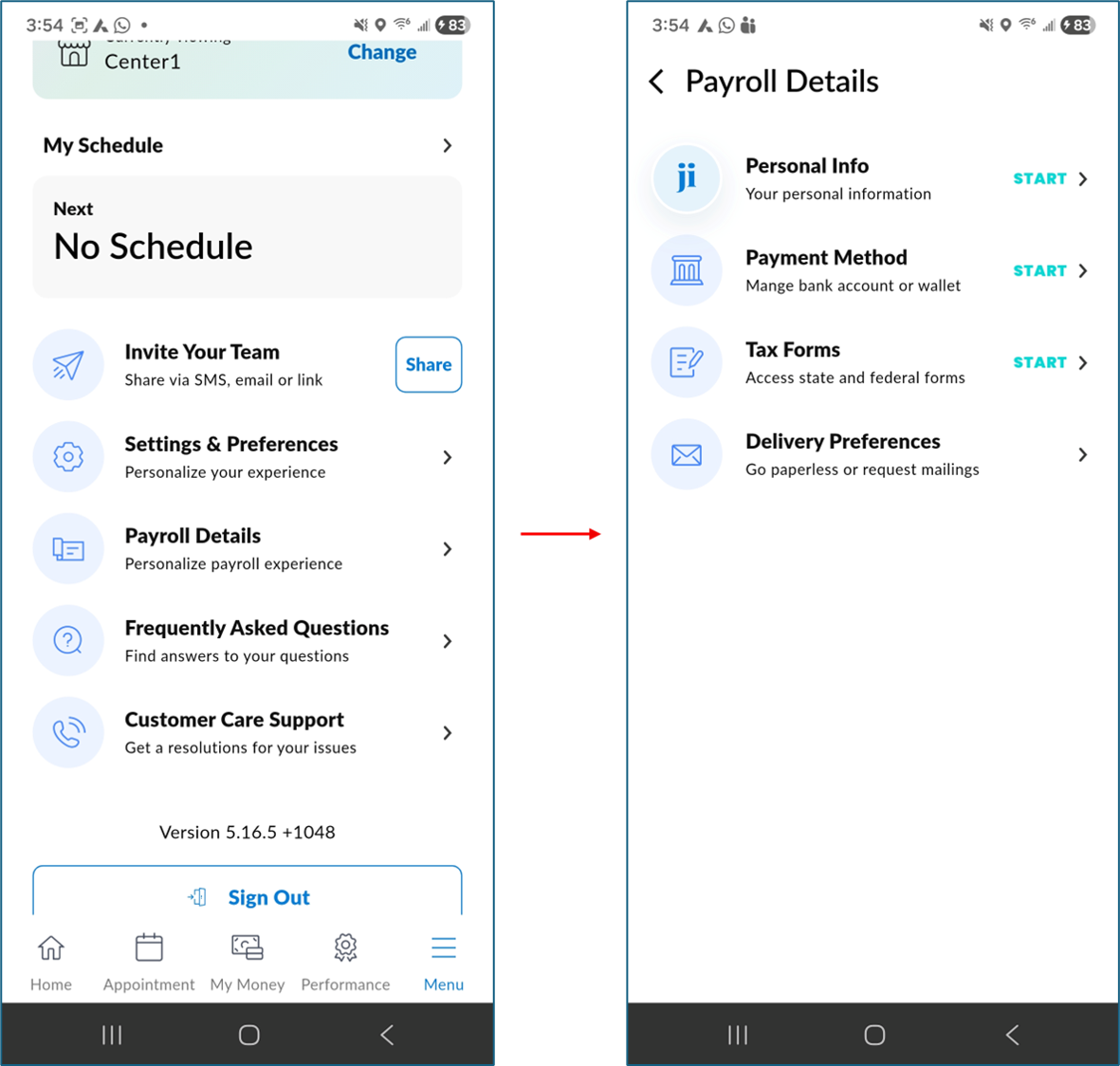
View and update Payroll Details
To view and update payroll details:
On the Payroll Details screen, use the navigation options to view or update the following sections:
Personal details: Update Mobile Number, Email ID, Pronouns, Date of Birth, Social Security Number, and Billing Address (Line 1, Line 2, City, State, Country, ZIP).
Note
You cannot update First Name, Last Name, Role, or Center.
Bank account: Add or update your bank account details for direct deposit. You can add your Zenoti Wallet to receive payroll direct deposits and enjoy additional benefits such as credit building, rewards on card spending, and other features.
Tax withholdings: Update federal and state tax preferences. For information on how to update your W-4 or W-9 form, refer to the Common Queries section in this article.
W-2/1099 form delivery preference: Choose how to receive annual tax documents, either electronic or paper delivery.
Note
Electronic delivery offers early access to W-2/1099 forms, reduces the risk of loss or theft, enables remote access, and supports eco-friendly practices.
Tax Documents: Access tax documents such as your W-2 or 1099 statement once generated.
Other Documents: Access other documents such as the I-9 form, or business documents such as leave policy or handbook uploaded by the business and shared with employees.
Paystubs: View and download past paycheck records.
Notification settings: Manage preferences for payroll-related updates.
View and Download Paystubs
Paystubs offer a detailed record of earnings, deductions, and net pay. You can download paystubs as needed from the myZen app.
Your recent paystub details are displayed under Payroll Details. To view past data, tap View all paystubs.
To view or download paystubs:
Log in to the myZen app.
Tap Menu at the bottom right.
Tap Payroll Details.
Tap View all paystubs.
Select and download paystubs for the desired pay period.
Frequently asked questions (FAQs)
Q. How do I update my W-4 form?
A. To update your W-4 form:
On the Payroll Details screen, navigate to Tax withholdings.
Select Federal W-4 to open the form. ==The existing form is displayed by default.
Scroll down and tap Regenerate Form.
Update the required fields such as filing status, dependents, and additional withholding amounts.
Tap Save to submit your updated W-4 form.
Note
Changes to your W-4 take effect from the next payroll cycle after submission.
Q. How do I update my W-9 form?
A. To update your W-9 form:
On the Payroll Details screen, navigate to Tax withholdings.
Select W-9 to open the form. ==The existing form is displayed by default.
Scroll down and tap Regenerate Form.
Update the required fields such as name, business name, taxpayer identification number, and address.
Tap Save to submit your updated W-9 form.
Q. When should I update my W-4 form?
A. Update your W-4 when you experience changes such as marriage, divorce, the birth of a child, or a significant change in income.
Q. How long do tax form changes take to reflect?
A. Updates to tax forms take effect starting from the next payroll cycle.
Q. Can I revert to my previous tax withholding preferences?
A. You can update your tax forms at any time by following the same steps. Each new submission replaces the previous one.
Impacts and considerations
Verify your contact information to ensure you receive updates and documents.
Payroll Advance is an upcoming feature and will be available soon.
Key terms
Term | Description |
Paystubs | Paystubs provide employees with detailed information about their earnings, deductions, and net pay. Paystubs are also called pay slips or paychecks. |
Earnings | Breakdown of earnings that an employee received, which could include hourly pay, commissions, tips, and bonuses. |
Deductions | Breakdown of taxes, benefits, child support garnishment, and other post-tax deductions if relevant. |
Net pay | Final amount that is paid to the employee. |
Payment method | Either direct deposit or manual payment by the employer. |