Track Form Review Compliance Using the Compliance Tracking Dashboard
This article explains how to access and use the Compliance Tracking dashboard to monitor compliance with review rules, configure review targets, and randomize forms for review.
Overview
The Compliance Tracking dashboard helps managers and admins monitor whether form review targets are being met. With data on submissions, reviews, and compliance status, this dashboard ensures Medspa organizations stay aligned with internal quality goals and regulatory requirements.
You can use this dashboard to:
Track progress toward target review percentages
View detailed compliance metrics by provider, center, and job
Configure and update compliance rules
Trigger randomized flagging of forms for reviews
Prerequisites
Role permissions to view and manage the Compliance Tracking dashboard
To grant a user permission to view the Compliance Tracking dashboard, follow these steps:
At the organization level, click the Configuration icon.
Navigate to Security > Security roles.
Select a role and click the Permissions tab.
Expand the Appointment Book section, and for Form Compliance, select the View Compliance Tracking checkbox.
To grant a user permission to modify compliance rules, follow these steps:
At the organization level, click the Configuration icon.
Navigate to Security > Security roles.
Select a role and click the Permissions tab.
Expand the Appointment Book section, and for Form Compliance, select the Modify Compliance Rules checkbox.
Access the Compliance Tracking dashboard
At the organization level, navigate to Medical hub > Compliance tracking.
Note
The dashboard only shows details of forms enabled for review.
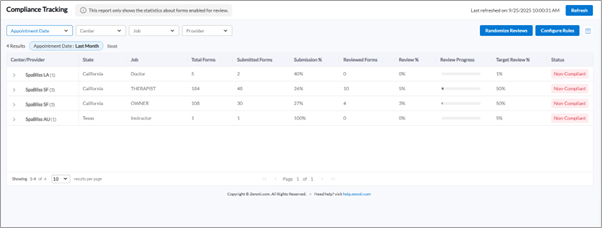
Use the following filters to refine the view of the dashboard:
Appointment Date
Center
Job
Provider
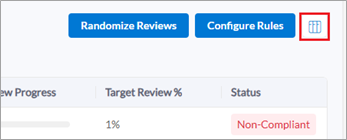
Click Select columns to display at the top-right corner to manage the visibility and display order of the columns in the dashboard.
Column descriptions
Column | Description |
|---|---|
Center/Provider | The center and provider(s) under review |
State | Name of the state in which the center is located |
Job | Job role of the provider |
Total Forms | The total number of forms associated with the provider |
Submitted Forms | The number of forms submitted by the provider |
Submission % | The percentage of forms submitted out of total |
Reviewed Forms | Number of forms that have been reviewed |
Review % | The percentage of forms that have been reviewed |
Review Progress | Visual bar showing progress toward the review goal |
Target Review % | Required review percentage set in the compliance rule |
Status | Compliance status (Compliant or Non-compliant) |
Configure compliance rules
Create compliance rules
On the Compliance Tracking dashboard, click Configure Rules.
On the Compliance Rules slide-out panel, click New Rule.
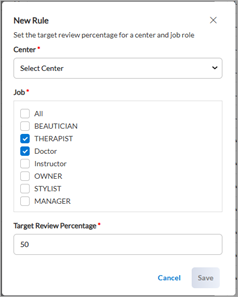
Select the Center and Job roles for which the rule should apply.
Enter the Target Review Percentage (minimum percentage of forms that must be reviewed).
Click Save.
Edit compliance rules
On the Compliance Tracking dashboard, click Configure Rules.
Find the rule you want to change and click the Edit icon.
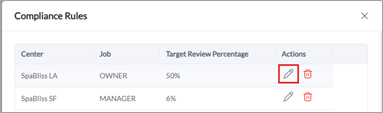
Edit the Center, Jobs, or Target Review Percentage, as required.
Click Save.
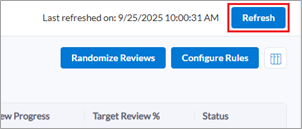
Click Refresh on the main dashboard to apply updated rules.
Delete compliance rules
On the Compliance Tracking dashboard, click Configure Rules.
On the Compliance Rules dashboard, click the Delete icon next to the rule.
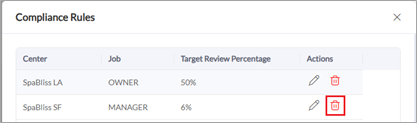
Click Delete again to confirm.
Randomize reviews
Use this feature to automatically assign a set of submitted forms for review based on your active compliance rules and target percentages. This helps ensure reviews are selected fairly and consistently across all providers.
On the Compliance Tracking dashboard, click Randomize Reviews.
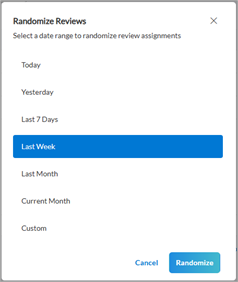
Select the Date range for which forms should be randomly assigned for review.
Click Randomize to begin the process.
You'll receive an email once the review forms have been randomly assigned.
Note
If a randomization is already in progress, you must wait until it finishes before starting a new one.