Configure mandatory additional fields for appointment booking
You can configure additional fields to be mandatory when booking an appointment through the bottom panel in the Appointment Book. When enabled, the system blocks the appointment if the selected fields are not completed. This is particularly useful for businesses operating in regions such as Denmark, where capturing mandatory guest information (for example, CPR number) is required before providing services. Reach out to Zenoti support to enable guest additional fields (If not enabled already).
Overview
With this setting enabled:
Selected guest additional fields become mandatory during in-store appointment booking.
The system blocks the appointment if any required field is missing.
Front-desk staff must complete the required information before confirming the booking.
This setting applies only to appointments created through the bottom panel in the Appointment Book.
To configure mandatory guest fields during in-store booking
At the organization level:
Click the Configuration icon.
Navigate to Guests > Profile > Guest profile rules.
Turn on the Block booking of appointment if any required fields are missing toggle.
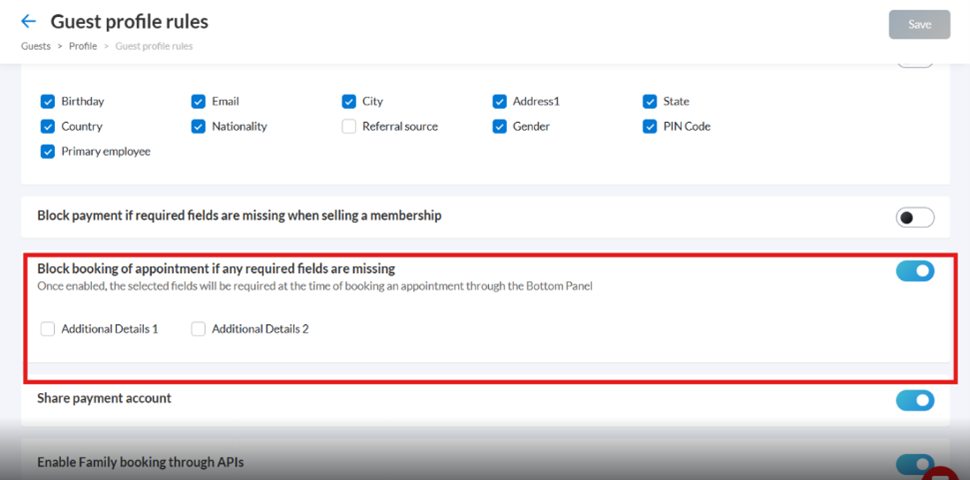
After enabling the toggle, select the required fields:
Additional Field 1
Additional Field 2
Click Save.
The system displays the configured labels for the fields in the booking panel.
How it works in the Appointment Book
When booking an appointment using the bottom panel of the Appointment Book:
The selected guest additional fields appear after the Referral field.
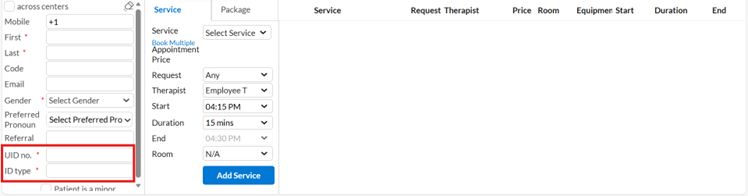
If any selected field is empty, the system prevents the appointment from being booked.
Front-desk staff must enter the required information before proceeding.
Once all required fields are completed, the appointment can be confirmed.
Impacts and considerations
This setting applies only to in-store bookings created from the bottom panel of the Appointment Book.
It does not affect online booking (Webstore or Customer Mobile App).
Only the selected guest additional fields are enforced.
The labels displayed depend on how the fields are configured in your organization.
If the setting is turned off, the fields remain optional during booking.