Analytics subscription
Overview
Analytics Subscription allows Analytics Plus users to receive reports automatically by email at scheduled intervals. You can subscribe to reports in image, PDF, or both formats and choose when and how often the reports are delivered (daily, weekly, or monthly).
Subscription feature of Zenoti Analytics allows Analytics Plus users to subscribe to receive Analytics reports in image, PDF, or both formats in emails at a scheduled time periodically.
Prerequisites

Make the favorite view as default view

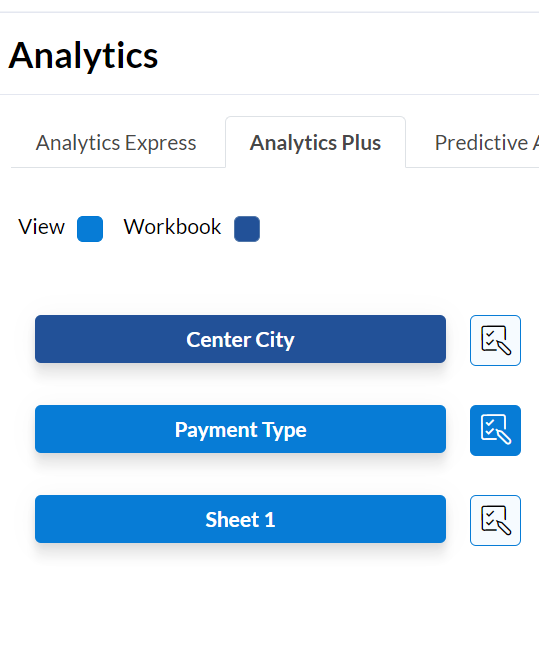
After completing all the prerequisite steps, next to the view/workbook, you will be able to see the following buttons. This might take 24 hours to reflect:
Subscribe

Edit

Subscribe to a report
Note
Only users who have access to the report can subscribe to it.
A workbook can be subscribed only in PDF format, while a view can be subscribed in both image and PDF formats.
The subscription settings are saved for each user individually.
Ensure that you have access to the report.
Mark the workbook/view as a favorite.
Click the Subscribe
icon next to the report.Provide the following details:
Disclaimer text: This text indicates if the user is subscribing to a specific view or subscribing to an entire workbook. (Read only)
Dashboard Name: The name of the workbook/view that you want to subscribe to. (Read only)
Email Address: The email address where you want to receive the subscribed report. (Read only)
Email Subject: The subject line of the email that will contain the subscribed report.
Email body: The body of the email that will contain the subscribed report.
Schedule: The frequency at which you want to receive the subscribed report (daily, weekly, or monthly). (Dropdown list)
Timeslot: The time of day when you want to receive the subscribed report. (Drop-down list)
Format: The format in which you want to receive the subscribed report (image, PDF, or both). (Drop-down list)
Paper size: The paper size of the PDF report. (Drop-down list)
Orientation: The orientation of the PDF report (landscape or portrait). (Drop-down list)
To save your settings and enable the subscription, click the Save button.
Edit a subscription
Next to the report, click the Edit
icon.Make the desired changes to the subscription settings.
Click the Save button.
Unsubscribe from a report
Next to the report, click the Edit
icon.Click the Unsubscribe icon.
Click Save.
Manage subscriptions
This tab lists the subscriptions subscribed by users for themselves and for other users, depending on their role. Users with the Owner role have access to view all subscriptions across the entire organization. You can search and filter by user and their respective subscriptions.
Next to the Analytics Plus tab, click the Subscriptions tab.
From the list of subscriptions, in the Actions column, click the Edit subscriptions button.
Make the relevant changes to the subscription settings.
Click Save.