Read Emirates ID Details using a Card Reader
This article explains how to use an Emirates ID to automatically fill guest demographic details when completing Nabidh compliance forms in the UAE.
Overview
Zenoti allows you to scan a guest’s Emirates ID and automatically populate their demographic information in a Nabidh compliance form. This process speeds up data entry, improves accuracy, and reduces manual work.
Note
This feature is not available by default. Reach out to your Zenoti representative to set up this feature for your organization.
Prerequisites
A workstation (clinic's front desk or provider's PC) with a free USB port.
Browsers: Google Chrome or Microsoft Edge (only on Zenoti Web).
Operating systems: Windows 10 and Windows 11 machines.
Geographic regions: UAE regions
Note
This feature only works on Nabidh compliance forms.
Supported smart card readers: COOLBABY CT30 USB Smart Card Reader and HID OMNIKEY 3121 USB Smart Card Reader
The ability to install a small helper service on the workstation (requires administrator rights during installation).
A valid (non-expired) Emirates ID card
Install the Emirates ID reader service
To enable card reading, install the helper service on each workstation. This is a one-time setup.
Connect the card reader to the PC using a USB cable.
Download the Emirates ID Reader Service using the link provided by Zenoti.
Right-click the ZIP folder and click Extract All and select a destination folder.
Open the extracted folder and locate the installer file named Install service (this may be a script or executable file).
Right-click the installer and select Run as administrator.
Wait for the confirmation message indicating that the service has been successfully installed.
Close the installer window once the installation is complete.
Note: You only need to install the service once per workstation.
Read an Emirates ID card
To read an Emirates ID card when filling guest details in a compliance form:
Open the Nabidh compliance form in Zenoti Web.
Insert the Emirates ID card into one of the supported card readers.
Click Read data using card reader.
If the scan is successful, a Data Read Successfully pop-up will appear showing the details of the guest.
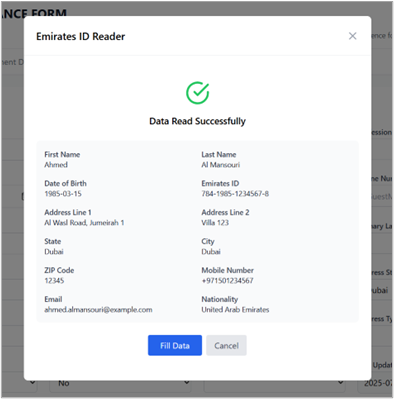
Click Fill Data to automatically insert the scanned information into the form.
Status Messages
When you click Read data using card reader, you may see one of the following:
Successful Scan
The card is detected and a preview appears. Click Fill Data to populate the form.
Expired Emirates ID
An Expired message appears and autofill is disabled. Request a valid Emirates ID.
Emirates ID Not Detected
The reader is connected, but no card is inserted. Insert the card and click Check again.
No Card Reader Detected
A supported reader is not connected. Plug in the device and retry.
Reader Service Not Installed
The helper service is missing. Reinstall it as Administrator and try again.
Quick troubleshooting checklist
If the scan fails, complete this checklist before contacting support:
Use a supported reader (COOLBABY CT30 or HID OMNIKEY 3121).
Connect the reader directly to the computer (avoid unpowered USB hubs).
Try a different USB port.
Reinstall the service if you see Service not installed.
Restart the workstation if the reader was recently connected.
Contact your clinic IT team if system policies block software installation.
Completing these steps resolves most setup issues.
Operational best practices for clinics
Follow these recommendations to ensure smooth daily operations:
Standardize the front desk workflow
Use this consistent process:
Connect the reader.
Open Zenoti Web.
Open the Nabidh compliance form.
Insert the Emirates ID.
Click Read data using card reader.
Verify the preview details.
Click Fill Data.
Consistency reduces errors and speeds up check-in.
Maintain backup hardware
Keep at least one spare supported reader at multi-provider locations. This prevents downtime if a device fails.
Train for exceptions
Train staff to follow your clinic’s alternate identity verification policy when:
The Emirates ID is expired.
The card is damaged or unreadable.
The reader is temporarily unavailable.
Frequently asked questions (FAQs)
Do I need to install the reader service every day?
No. Install the Emirates ID Reader Service once per workstation.
What happens to the data after scanning?
Zenoti displays the data in a preview window first. The form is filled only after you click Fill Data. Follow your organization’s privacy and data retention policies when handling patient information.
Can I use a different smart card reader?
Zenoti officially supports:
COOLBABY CT30 USB Smart Card Reader
HID OMNIKEY 3121 USB Smart Card Reader
Other ISO/IEC 7816-compliant readers may function, but Zenoti does not officially support them.
Quick reference: error-to-resolution guide
If you see this issue | Do this |
|---|---|
Service not installed | Reinstall the service as Administrator |
No card reader detected | Connect a supported reader and try another USB port |
Emirates ID not detected | Insert the card correctly and click Check again |
Expired ID | Request a valid Emirates ID (autofill is disabled) |