AI Business Advisor
Overview
Go from data to decisions
Meet your new analyst. Ask a plain-English question about your business and get analysis with insights and a recommended next step, grounded in the Zenoti data you already have.
Start in Fast Mode for the standard KPIs built into AI Business Advisor. Switch to Thinking Mode when you need a deeper look. You can turn any answer into a dashboard without leaving the conversation.
Caution
AI-generated content can occasionally be inaccurate. Review important results before making business decisions.
For more details, watch this short video for AI Business Advisor.
Before you begin
Activate AI Business Advisor in the Zenoti Marketplace as part of AI Workforce, or as a standalone AI Business Advisor add-on.
The product can appear across screens in the organization, but answers include only billed centers first. Employee role access and your current organization, zone, or center view then apply on top of that billed-center set. AI Business Advisor cannot expand those limits.
Credits and the number of dashboards you can create depend on your plan. See the Marketplace listing for the current plan details. Each question and suggested follow-up uses credits. Some data may take one to five business days to prepare.
Check data enablement and access
Open Settings from the AI Business Advisor side navigation. The setup flow shows whether your organization’s data is ready and which employee security roles can use AI Business Advisor.
If you have permission to manage access, select the roles to activate. Use Refresh to see the latest role and enablement status.
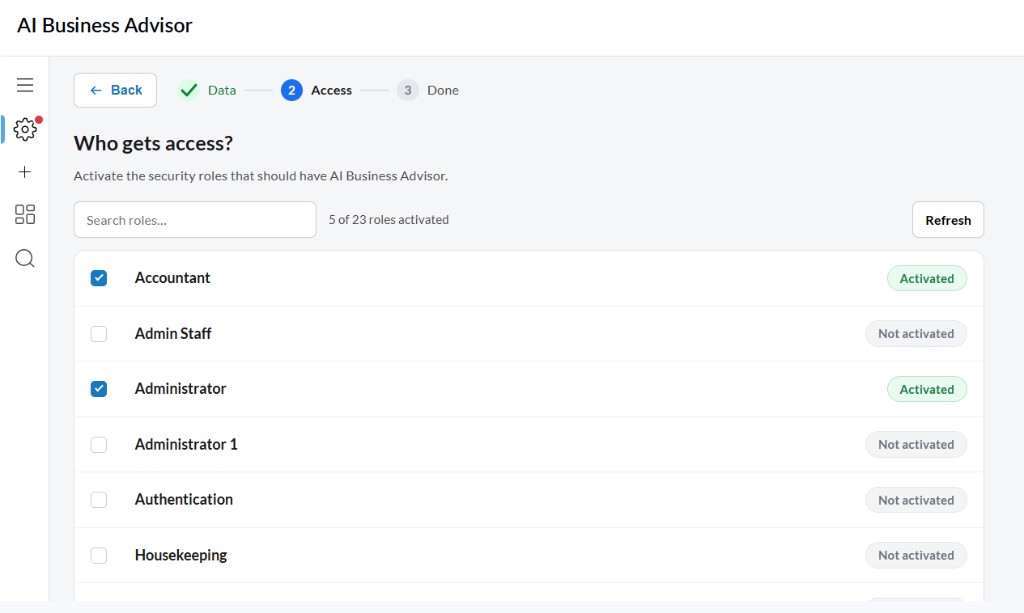 |
Track data enablement and activate access for the appropriate employee roles.
Start a question
Go to Menu > Data & Insights > AI Business Advisor.
Start in Fast for a standard KPI question. Switch to Thinking when you need a deeper look.
Enter a question and select Send, or choose a suggested question.
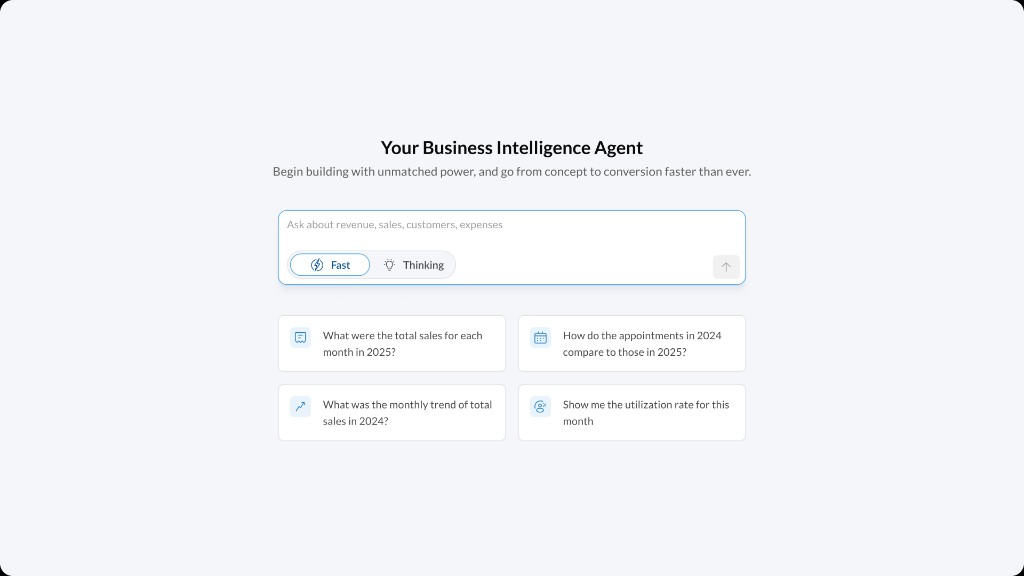 |
Start in Fast Mode for a standard KPI, then switch to Thinking Mode for a deeper look.
Choose the right mode
Start in Fast Mode with the standard KPIs built into the product. More KPIs will be added over time. Switch to Thinking Mode for a deep dive. Fast Mode typically takes about one minute; Thinking Mode takes about two minutes.
Fast Mode: standard KPI answers
Fast Mode answers comparisons, rankings, and trends from summarized daily data. If it does not yet include the KPI you need, switch to Thinking Mode.
It supports:
Sales: revenue, average ticket, invoices, item types, taxes, discounts, refunds, and quantities.
Appointments: status, booking, rebooking, ratings, lead time, and duration.
Collections: totals and breakdowns by sales category.
Utilization: scheduled, service, available, and utilized hours, plus revenue per hour.
Guests: unique guests and visits, including new versus returning guests.
Fast Mode can show results for your current organization, zone, or center view. Depending on the KPI, you can break results down by:
Time: day, week, month, quarter, or year
Business detail: center, employee, service category, center and employee, or center and service category
KPI-specific detail: item type, appointment status, booking source, guest type, member status, provider request, gender, or hour of day
Not every KPI supports every breakdown. If Fast Mode does not yet cover the KPI, named records, or explanation you need, switch to Thinking Mode.
Try:
“What was total revenue this month?”
“Which centers had the highest no-show rate last quarter?”
“Show monthly revenue for the last 12 months.”
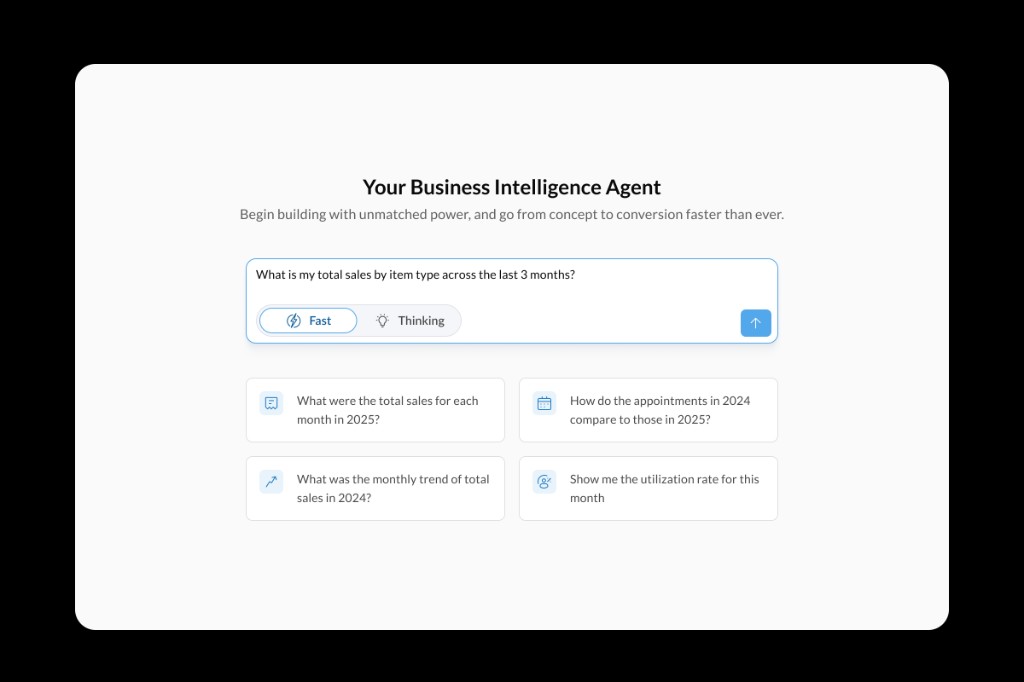 |
Start with a standard Fast Mode KPI, then switch to Thinking Mode if you need a deeper look.
Thinking Mode: deep dive
Use Thinking Mode when a Fast Mode answer is not enough. It handles “why,” “what changed,” and “diagnose” questions using detailed records, defined groups, or connected business areas.
Try:
“Why did revenue drop last month?”
“Which centers are underperforming and what is driving the difference?”
“Among first-time guests acquired last quarter, how many returned within 90 days?”
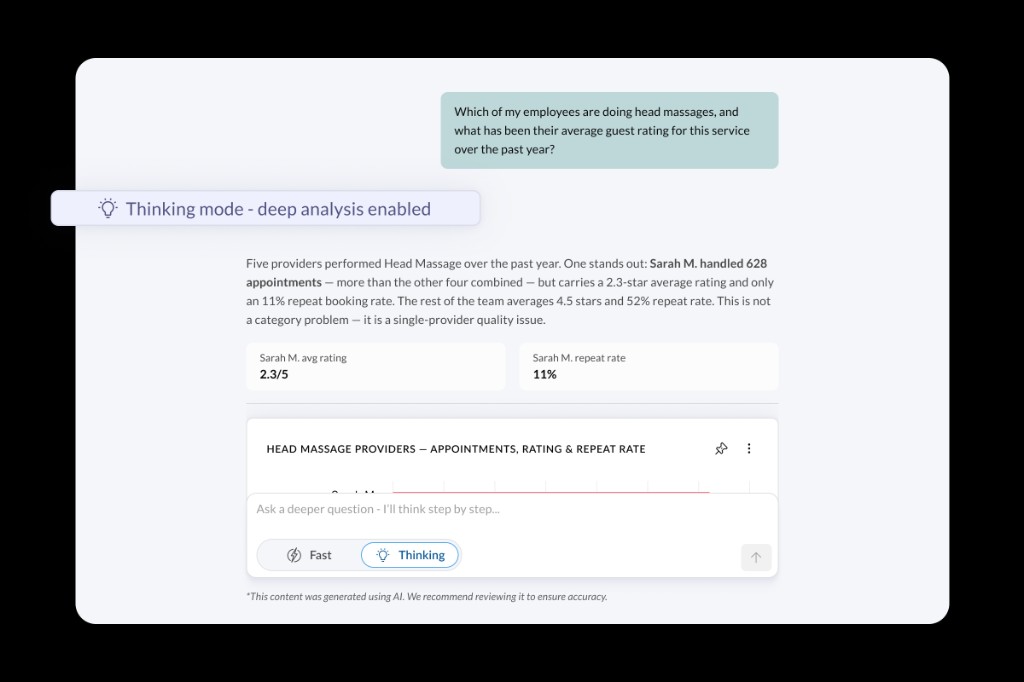 |
Thinking Mode is the deep dive after a Fast Mode KPI answer.
Voice-call, public-review, and other specialized analysis is available only when the related source is enabled for your organization.
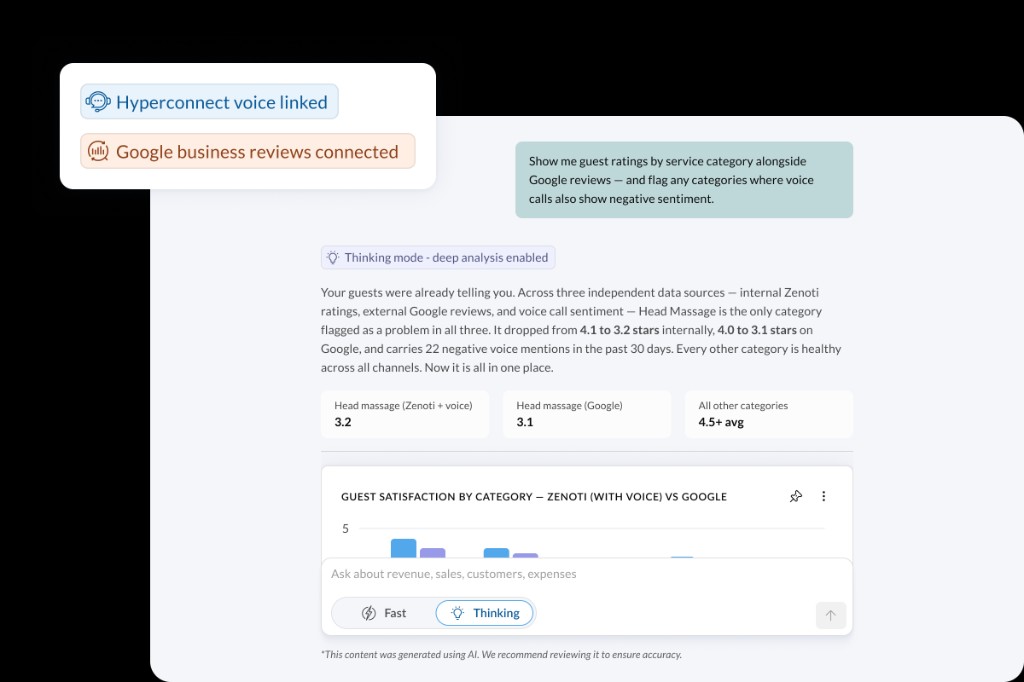 |
Connected voice and review sources can be analyzed together.
Ask a clear question
Include the details that matter:
Metric: What do you want to measure?
Period: When?
Breakdown: By center, employee, service, product, or category?
Comparison: Against which period or group?
Filter: Is there a specific center, employee, service, or product?
For example, instead of “How are we doing?”, ask:
“How does service revenue this month compare with last month by center?”
Understand the answer
Every answer includes a short narrative, not just a number. It may also include KPI cards, recommendations, a chart, a table, or suggested follow-ups.
Select KPI metrics, Explanation, or Formulas and calculations when shown. These panels explain the metric, formula, date range, filters, and level of detail used.
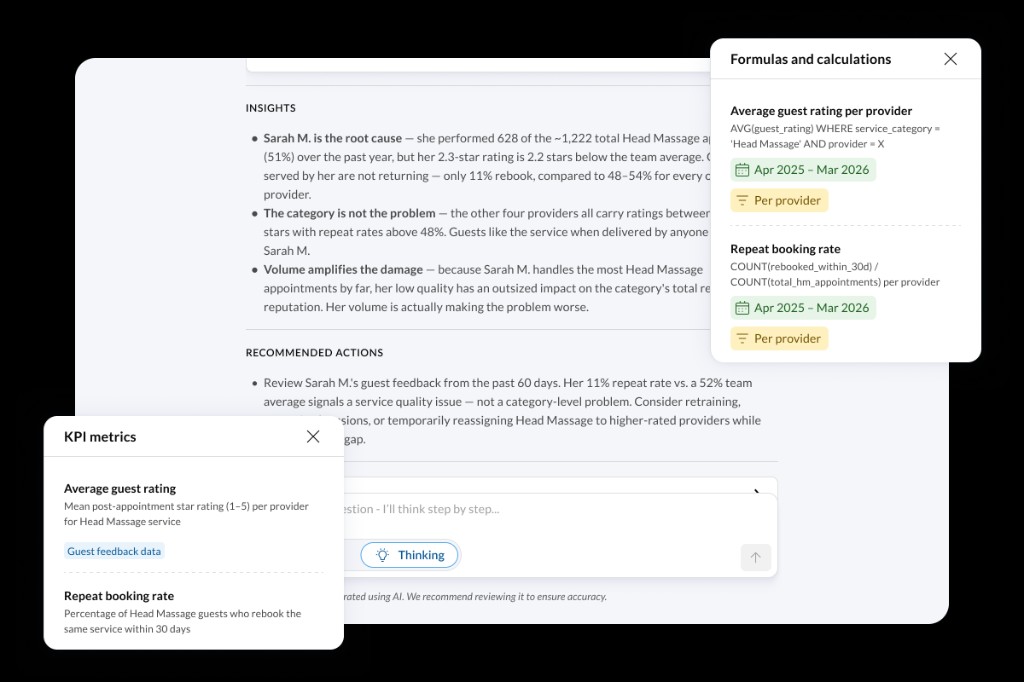 |
Check the metric definition, period, and granularity behind an answer.
If the Advisor cannot safely understand a name, period, metric, or follow-up, it asks you to clarify. Choose an option or enter more detail.
You can also ask follow-ups without repeating clear context:
“What was total revenue in May?”
“Break that down by center.”
“Show only the top five.”
Use Explore on a returned table to search, sort, filter, pivot, or export the available rows. Chart options may let you change the chart type, download it, export data, or pin the result.
Turn an answer into a dashboard
Like an answer? Keep it. Select Pin, choose a dashboard, and save the tile. There is no separate dashboard builder to learn.
Organize tiles, apply date filters, reopen an analysis in chat, or export to XLS or PDF. Snapshot tiles cannot refresh. Sharing depends on your permissions and configuration. How many dashboards you can create is defined by your Marketplace plan.
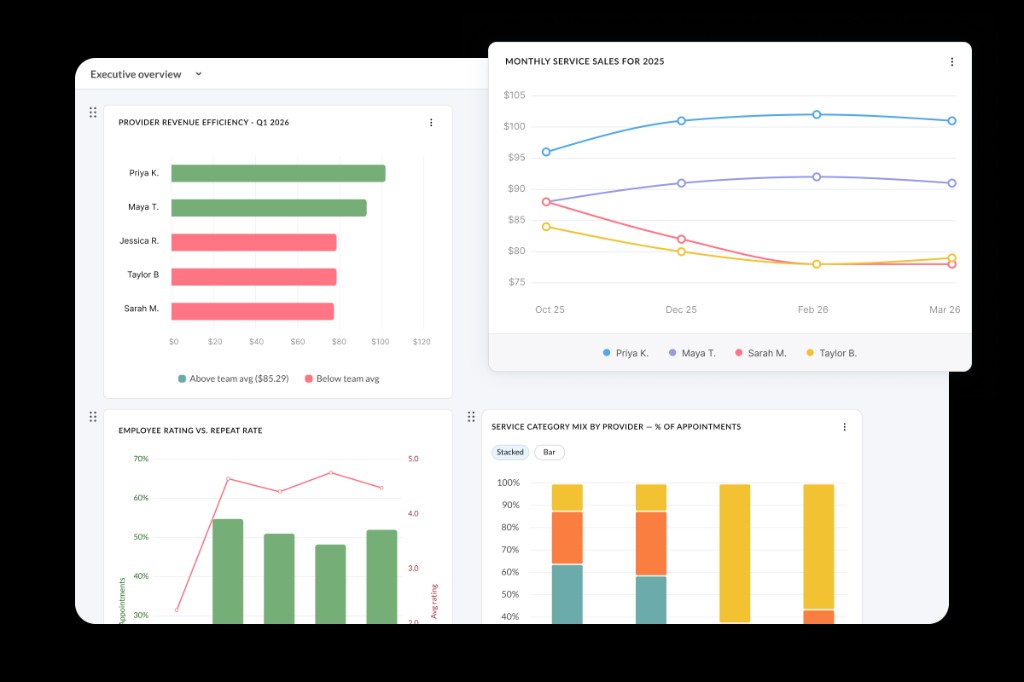 |
Build a dashboard from your answers without leaving the conversation.
Conversations and feedback
Use Chat history to find or resume a conversation. Select New chat when you want to clear the previous context.
Select Helpful or Not helpful below an answer. You can choose a reason and add comments, but do not include sensitive personal information.
If you see no data or an error
Try a wider date range, fewer filters, a simpler breakdown, or a correctly spelled name. Confirm the center is billed for AI Business Advisor and is in your current view. If Fast Mode does not yet include the KPI or the question needs a deeper look, switch to Thinking Mode.
If the request times out, make it smaller by using one metric or a shorter period. If the service remains unavailable, try again later or contact Zenoti Support with the approximate time and wording of the question. Do not include guest personal information.
Data access and safety
AI Business Advisor is read-only. It first limits data to billed centers, then applies your employee role and current view. It cannot update operational data, access another organization, or include a center that is not billed or not within your access.
Ask for guest or employee details only when you are authorized to use them for a legitimate business purpose. Handle exported information according to your organization’s privacy and security policies.