Map third-party marketplace orders to guest profiles in Zenoti
In this article, you will learn how to use Marketplace Order Mapping to attribute orders from third-party marketplaces (such as Ulta or Amazon) to dedicated guest profiles in Zenoti. You will also learn how the feature works, how to configure mappings, and how mappings behave across organization and center levels.
Overview
When you sell through third-party marketplaces connected to your Shopify account, those marketplaces typically do not share the end customer's personal information (name, email) with Zenoti. This means orders arrive without the details needed to match them to a guest profile, which can lead to inaccurate sales reporting and customer attribution. Marketplace Order Mapping lets you assign orders from a specific marketplace source to a dedicated guest profile in Zenoti. For each marketplace, you configure a guest identity (name and email). When orders arrive from that source, Zenoti automatically attributes them to the configured guest — keeping your reporting accurate and your customer data organized. For example, your business sells products through Ulta via Shopify. Ulta does not share the buyer's email with Zenoti, so orders arrive without guest details. With Marketplace Order Mapping, you can create a mapping for the source name ulta and assign all Ulta orders to a dedicated guest profile such as "Ulta Marketplace" with the email ulta-orders@yourbusiness.com. All future orders from Ulta are then attributed to this guest in Zenoti. You need this feature only when a third-party marketplace connected through Shopify does not share customer information in the order data. If a marketplace shares valid guest information, orders flow through the standard Shopify integration and a guest profile is created as usual — no mapping is needed.
Note
If a mapping exists for a source name, the mapping takes priority and overrides the guest information from the order, even if the order contains valid guest details.
Key terms
Source name: The identifier Shopify assigns to indicate where an order originated. For example, orders from a marketplace might carry a source name like Ulta, Amazon, or shopify_draft_order. This value comes directly from the Shopify order data and is used to match orders to the correct mapping in Zenoti. To find the correct source name, check the source_name field on your Shopify orders from that marketplace.
Marketplace Order Mapping: A configuration in Zenoti that links a Shopify source name to a specific guest profile (first name, last name, and email). When an order arrives with a matching source name, Zenoti attributes it to the mapped guest.
Prerequisites
Before you configure Marketplace Order Mapping, ensure the following:
Your Shopify integration is set up and active in Zenoti. To learn more, see Shopify integrations.
You know the exact source name that Shopify assigns to orders from the marketplace you want to map. You can find this in the source_name field on the Shopify order.
You have a dedicated email address ready for each marketplace mapping (for example, ulta-orders@yourbusiness.com).
Limitations
Marketplace Order Mapping is available only for orders that flow through the Shopify integration. It does not apply to orders from other ecommerce platforms.
Each source name can have only one active mapping at a time. Having multiple active mappings for the same source name may cause unpredictable behaviour.
The First Name and Last Name fields are locked after you save a mapping. To use a different name, you must delete the existing mapping and create a new one with a different email.
If a mapping exists for a source name, the mapping takes priority and overrides the guest information from the order, even if the order contains valid guest details.
How it works
An order arrives from Shopify with a source_name (for example, Ulta).
Zenoti checks whether Marketplace Order Mapping is enabled and looks for an active mapping with a matching source name.
If a match is found, Zenoti looks up or creates a guest using the email from the mapping configuration.
The order is attributed to that guest in Zenoti.
If no match is found, the order follows the standard Shopify integration flow. If the order contains guest details, they are used to identify or create a guest profile, and the order appears in reports such as the Ecommerce Sync report. If the order does not contain guest details, the order cannot be mapped to a guest and does not appear in reports.
Enable Marketplace Order Mapping
At the organization level, click the Configuration icon.
Search for and select Ecommerce from the Integrations section.
Expand the Configuration section.
Turn on the Enable Marketplace Order Mapping toggle.
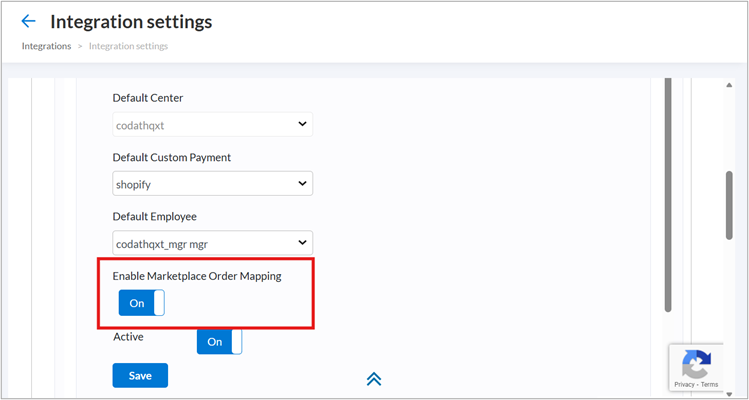
Click Save.
Once enabled, the Marketplace Order Mapping accordion becomes visible below the Configuration section.
Note
Turning off this toggle hides the mapping section and disables all marketplace mapping during order sync. No orders will be routed through mappings regardless of what mappings exist.
Add a mapping
Ensure the Enable Marketplace Order Mapping toggle is on.
Expand the Marketplace Order Mapping accordion.
Click Add Mapping.
You will find the following fields:
Source Name: Enter the exact source name from Shopify orders. For example, Ulta.
First Name: Enter the first name for the guest profile in Zenoti.
Last Name: Enter the last name for the guest profile in Zenoti.
Email: Enter a dedicated email address for this mapping.
Active: Toggle on to enable the mapping.
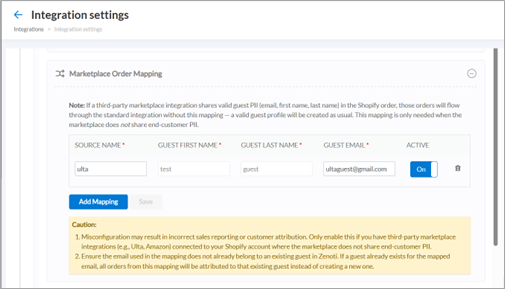
Click Save.
When the first order arrives from the matched source name, Zenoti creates a new guest with this email if one does not already exist. All subsequent orders from that source are attributed to this guest.
Edit a mapping
You can edit the following fields in an existing mapping:
Source Name: You can edit this at any time.
First Name/Last Name: These fields are locked after you save the mapping. To change the name, delete the mapping and create a new one with a different email.
Email: You can change the email, but be aware that changing it causes future orders to be attributed to a different (or new) guest.
Active toggle: You can toggle this on or off at any time to enable or disable the mapping without deleting it.
Delete a mapping
Click the delete button on the mapping row.
Click Save.
The mapping is removed. Orders from that source name will follow the standard Shopify integration flow going forward.
Organization and center behavior
At the organization level
The Marketplace Order Mapping toggle and configuration are fully editable at the organization level. Mappings saved here serve as the primary configuration.
At the default center
The Marketplace Order Mapping section is visible in read-only mode at the default center. The default center is the center you designate during Shopify integration setup as the primary center through which Shopify orders are synced and tracked. You cannot add, edit, or delete mappings from the default center view. The enable/disable toggle is also read-only.
At other centers
If the center inherits its Shopify settings from the organization (no separate Shopify subscription), the Marketplace Order Mapping section is hidden along with other inherited settings.
If the center has its own Shopify subscription, the Marketplace Order Mapping toggle and configuration are fully editable independently of the organization.
Important behavior
Guest creation, not guest updates
The mapping only creates a guest if one does not already exist for the configured email. Once created, the guest profile is reused for all future orders from that mapping. Changing the first or last name in the mapping after the guest has been created does not update the existing guest profile — the original name persists. This is why the name fields are locked after you save a mapping. To use a different name, you must create a new mapping with a new email.
Using an existing guest's email
If you use an email that already belongs to an existing guest in Zenoti, all orders from that mapping are attributed to that existing guest. A new guest will not be created. This can be intentional if you want marketplace orders routed to a specific guest. Be aware that the mapping will not create or update any guest profile in this case; it simply uses the existing one.
Source name matching is exact
The source name match is case-insensitive but must otherwise be an exact match. Extra spaces, typos, or slight variations cause the mapping to fail silently — the order is not routed to the configured guest and instead follows the standard flow.
Cautions
Misconfiguration may result in incorrect sales reporting or customer attribution. Only enable this feature if you have third-party marketplace integrations connected to your Shopify account where the marketplace does not share end-customer information.
Ensure the email used in the mapping is a dedicated address that does not already belong to an existing guest in Zenoti, unless you intentionally want orders attributed to that existing guest.