Targets
This article helps owners and managers use the Targets feature in Zenoti to plan, monitor, and manage business performance more effectively.
Overview
The Targets feature in Zenoti enables you to set business targets for various metrics at a monthly, daily, or weekly level. You can define measurable goals like a $9,000 service sales goal for your center to help your team stay focused and aligned and track such targets directly on the Business Snapshot page.
Targets empowers owners, managers, and zonal leaders to plan more strategically and monitor progress with clarity.
Required roles
Owner or Manager
Role permissions to view targets
To grant a user permission to view targets, follow these steps:
At the organization level, click the Configuration icon.
Navigate to Security > Security roles.
Select a role and click the Permissions tab.
Expand the Data & Insights section, and for Smart Targets, select the View checkbox.
Role permissions to edit targets
To grant a user permission to edit targets, follow these steps:
At the organization level, click the Configuration icon.
Navigate to Security > Security roles.
Select a role and click the Permissions tab.
Expand the Data & Insights section, and for Smart Targets, select the Edit checkbox.
Role permissions to show targets on Business Snapshot
To enable targets to show up on Business Snapshot in the Admin Dashboard, follow these steps:
At the organization level, click the Configuration icon.
Navigate to Security > Security roles.
Select a role and click the Permissions tab.
Expand the Data & Insights section, and for Smart Targets, select the Show Targets On Business Snapshot checkbox.
Important
After a user sets a target on the Targets screen, there will be a delay of approximately 2 hours before it appears on the Business Snapshot dashboard.
Set targets for a center
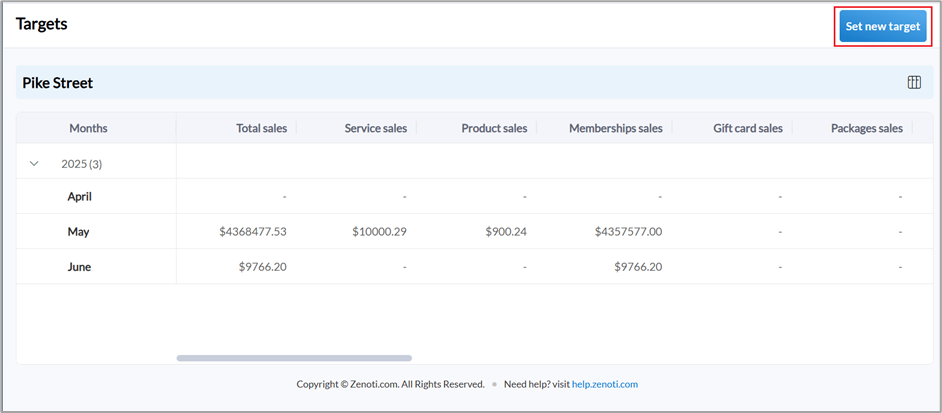
At the center level, navigate to Data & insights > Targets.
On the Targets screen, click Set new target.
Note
You can also set targets from the Admin page by selecting a category or metric and clicking Set target.
Select the Category for which you want to set the target.
Note
Select the Show previous period data checkbox to compare last year’s performance for the same month. This value will also appear in the “Customize targets” side panel.
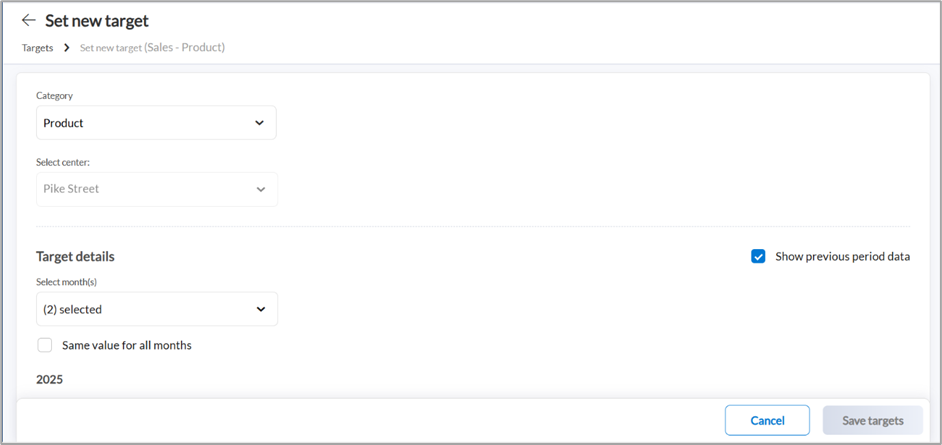
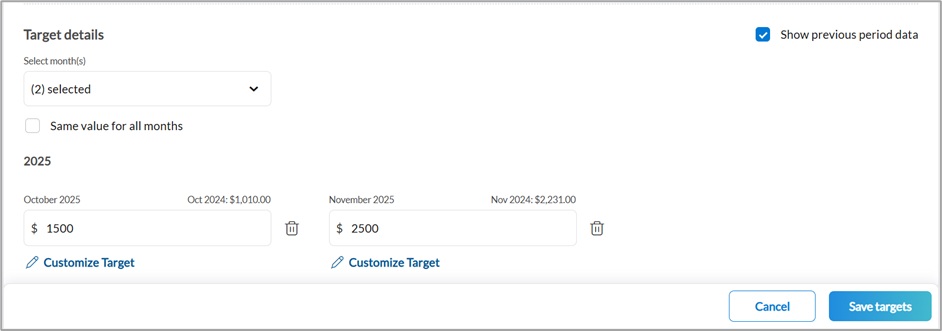
Select the months for which you want to set the target.
Tip
Select the Same value for all months checkbox to quickly apply one target value across multiple months.
Enter the value of the target in the field below the month.
Click Customize Target to set custom target values on a daily or weekly level and click Save.
Note
If you edit the target value for a specific date, the corresponding day of the week will be locked and cannot be customized.
Click Save targets.
Set targets for a zone
At the zone level, navigate to Data & insights > Targets.
Click Set new target.
Note
You can also set targets from the Admin page by selecting a category or metric and clicking Set target.
Select the Category for which you want to set the target.
Select the centers to which you want the targets to apply.
Select the months for which you want to set the target.
Tip
Select the Same value for all months checkbox to quickly apply one target value across multiple months.
Enter the value of the target in the field below the month.
Click Customize Target to set custom target values on a daily or weekly level and click Save.
Note
If you edit the target value for a specific date, the corresponding day of the week will be locked and cannot be customized.
Click Save targets.
Set targets for an organization
At the organization level, navigate to Data & insights > Targets.
On the Targets screen, click Set new target.
Note
You can also set targets from the Admin page by selecting a category or metric and clicking Set target.
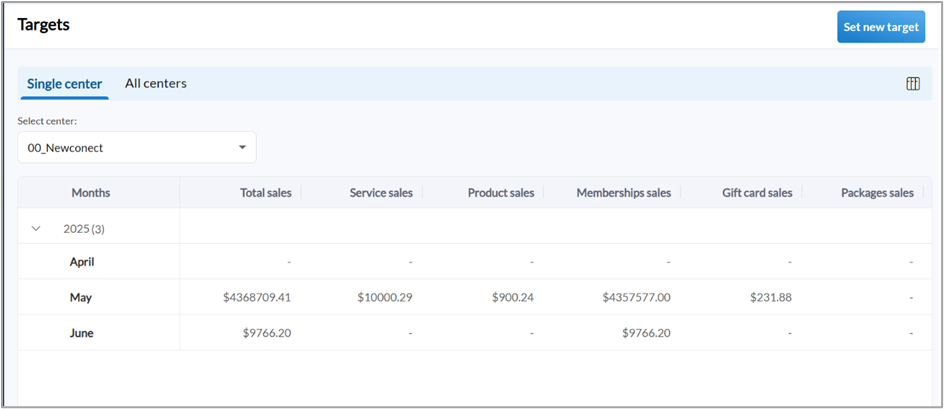
Select the Category for which you want to set the target.
Select the zones or centers to which you want the targets to apply.
Select the months for which you want to set the target.
Tip
Select the Same value for all months checkbox to quickly apply one target value across multiple months.
Enter the value of the target in the field below the month.
Click Customize Target to set custom target values on a daily or weekly level and click Save.
Note
If you edit the target value for a specific date, the corresponding day of the week will be locked and cannot be customized.
Click Save targets.
View and manage targets
Navigate to Data & insights > Targets.
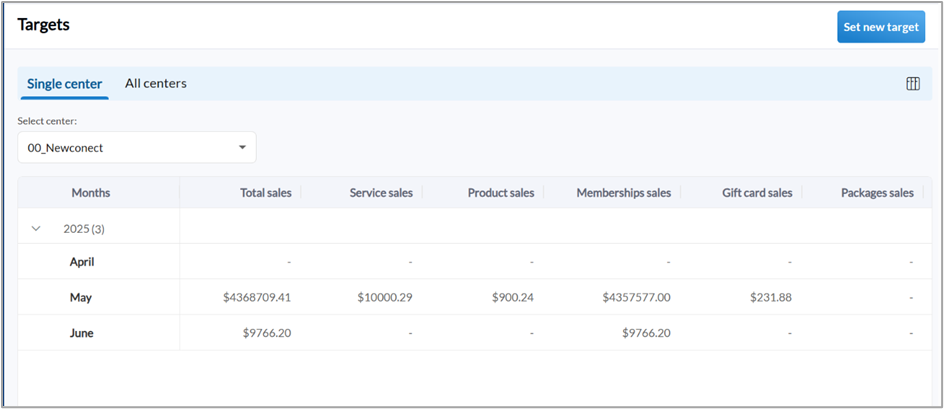
If you are at the organization or zone level, you can choose one center from the Single center tab for which you want to manage targets.
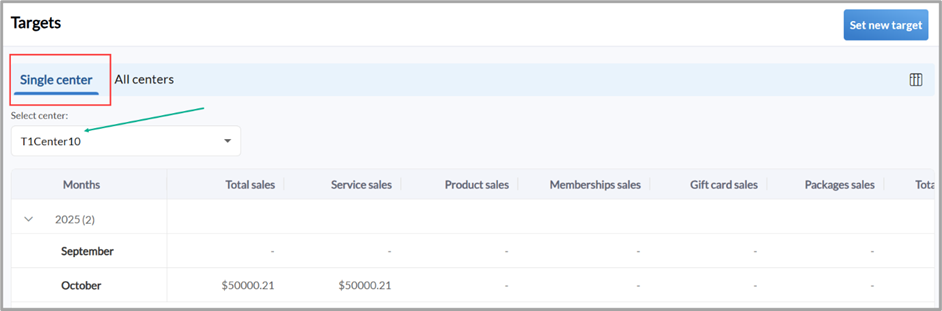
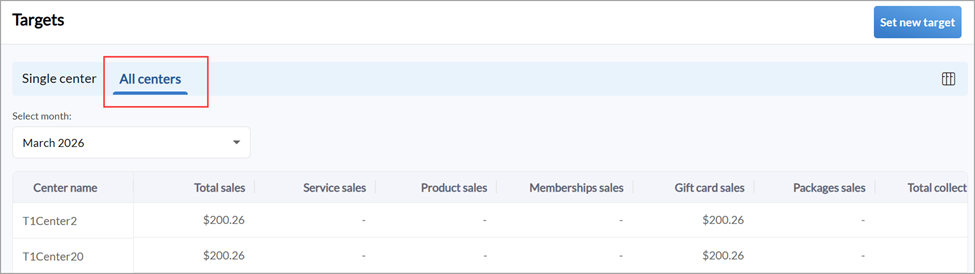
To manage targets for all centers within your zone or organization, access the All centers tab.
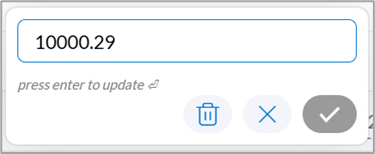
Click the field corresponding to the category and month for which you want to edit the target, enter the target value, and click the Confirm icon.
You can also directly set a target by clicking a blank field corresponding to the category and month, and entering the value of the target.
Note
You cannot edit the target value for the current month or past months.
To delete a target, click on the field and click the Delete icon.
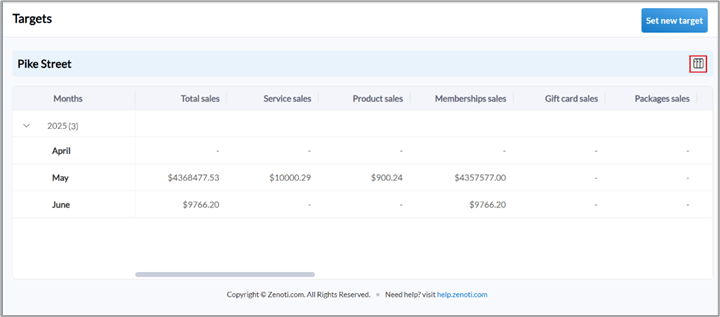
Customize Targets view
On the Targets screen, Click the Manage columns icon.
In the Manage columns side panel, use toggles to show or hide columns.
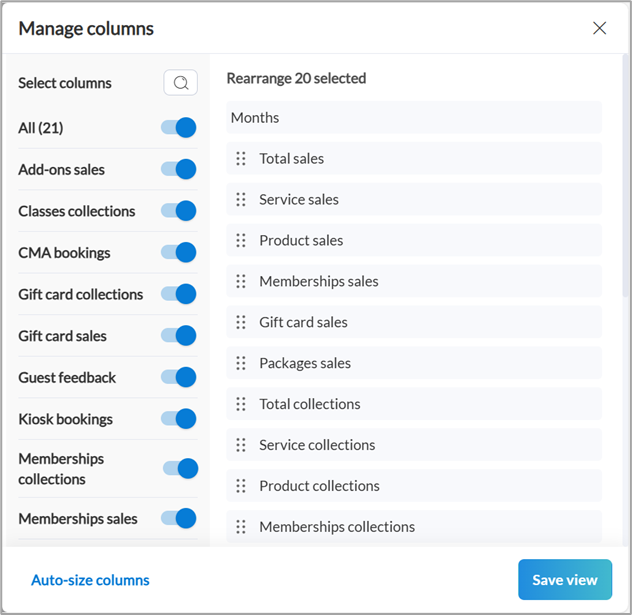
Rearrange the order in which the columns appear by dragging and dropping.
Note
You can click Auto-size columns to evenly adjust the column widths.
Click Save view.