Access For Inactive Employees – Wallet & Payroll Via Verification Code Login
This article explains how inactive employees can access Zenoti Wallet and Payroll (ZIP) using a verification code login, and what actions are available to them after they sign in.
Overview
If you are no longer actively employed at a business that uses Zenoti, you can still access your Wallet and Payroll information. Instead of using business login credentials, you sign in using a one-time verification code sent to your registered email address or phone number.
This access allows you to view wallet balances, transactions, pay stubs, and tax documents.
Sign in as an inactive employee
Open the myZen app.
On the login screen, tap Not an Active Employee?.
Enter your registered email address or phone number.
Tap Send Verification Code.
Enter the verification code you receive.
After successful verification, the app opens in inactive mode.
Possible messages during sign-in:
If your account is still active: Your account is still active. Please log in using your business username and password.
If no account is found: No records found with the entered email or phone number.
If login attempts exceed the allowed limit: Your account has reached the maximum number of login attempts allowed within the past hour. Please try again later.
App navigation for inactive employees
After you sign in, the app shows a simplified experience.
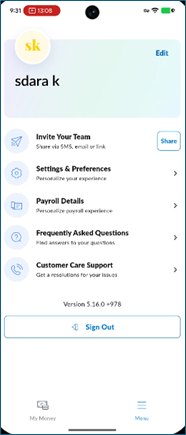
Only My Money and Menu tabs appear in the bottom navigation.
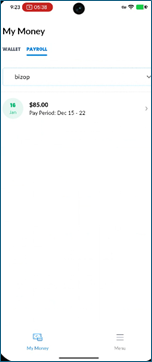
The My Money section gives you access to Wallet and Payroll, depending on what applies to your account.
Wallet and Payroll tabs
If you have both Wallet and Payroll, you see both tabs.
If you have only Wallet, you see the Wallet tab.
If you have only Payroll, you see the Payroll tab.
Tips and commissions do not appear for inactive employees.
Wallet access for inactive employees
Inactive employees can use most Wallet features, with one limitation.
You can:
View your balance and transaction history
Download statements
Transfer money
Create and manage payees
Manage card settings (activate a card, reset your PIN, block or cancel a card, and turn autopay on or off)
You cannot:
Request a new card
Payroll access for inactive employees
Pay Stubs
When you open Payroll, the app shows a list of all available pay stubs.
You can select from multiple businesses if you worked for more than one.
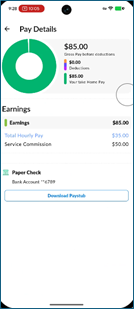
You can view pay stub details.
You can download pay stubs as PDFs.
Payroll Details Menu
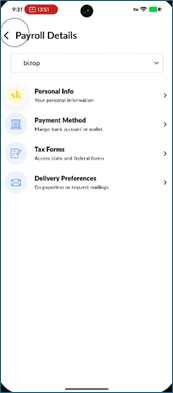
From Menu > Payroll Details, you can access payroll-related settings and documents.
Editing and downloading payroll information
Read-only information
As an inactive employee, you cannot edit:
Personal information
Bank account or payment method details
W-2 delivery preferences
Editable and downloadable information
You can update:
Federal tax withholding information
State tax withholding information
You can download:
W-2 forms
Tax forms
Other payroll-related documents
Key terms
Term | Description |
Inactive employee | A former employee who no longer has an active business login in Zenoti. |
Verification code login | A secure sign-in method that uses a one-time code sent to your email or phone number. |
My Money | The section of the app where you access Wallet and Payroll information. |
Wallet | Your Zenoti Wallet used to view balances, transactions, and card settings. |
Payroll | The section where you view and download pay stubs and tax documents. |