Resolve Failed Employee Payments
This article explains how to resolve failed employee payments after payroll is processed. It focuses on the actions you can take to complete employee payments.
Overview
If an employee payment is not completed successfully, you can resolve it directly from Payroll > Transactions by retrying the payment or refunding the amount to the business for manual payment. Zenoti notifies you via email.
Access failed employee payments
You can access failed employee payments from the payroll dashboard or directly from the transactions screen.
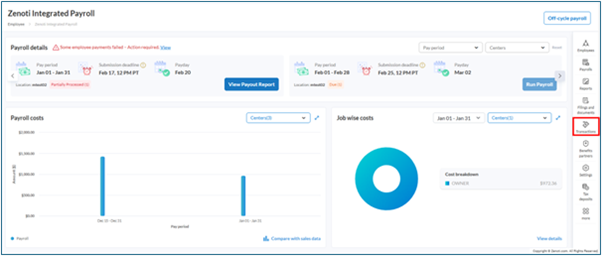
If employee payments fail, an alert appears on the Zenoti Integrated Payroll Dashboard. Select View in the alert to open the Transactions screen with the Failed status filter automatically applied.
To access failed employee payments from the Transactions screen:
Go to Employees > Zenoti Integrated Payroll.
On the Zenoti Integrated Payroll Dashboard's right-side menu, select Transactions.
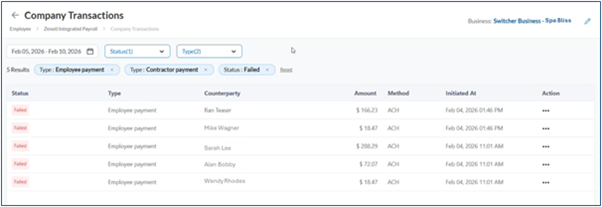
Filter by Status.
Select Failed.
Resolve a failed employee payment
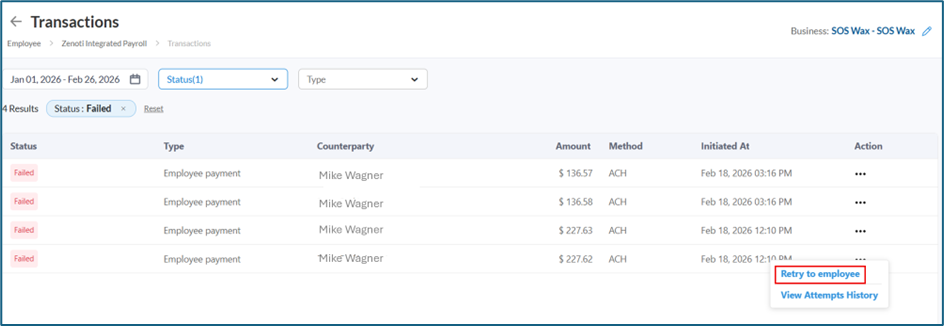
For each failed employee payment, select the 3-dots in the Actions column resolve the issue.
Retry to Employee
Use this option to retry the payment to an employee’s bank account.
Only valid bank accounts are available for retry.
In cases where no valid bank account exists, add or update a bank account to proceed.
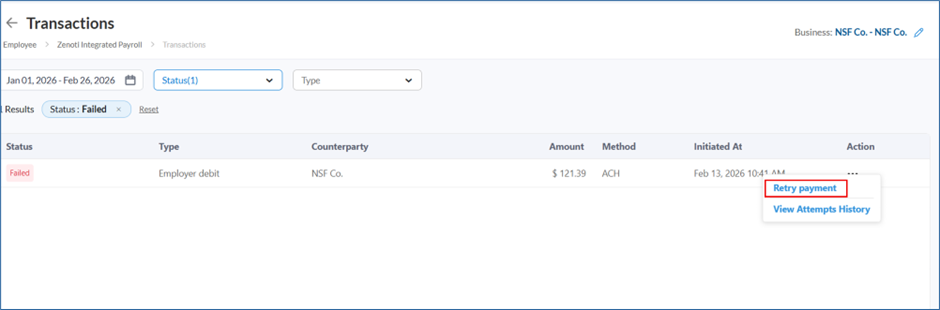
Refund to Business
Use this option if you want the funds returned to the business and plan to pay the employee outside of Zenoti. This option will be available only after 5-6 business days after payroll funding debit is successfully settled.
The net pay amount is refunded to the business.
The employee must be paid outside of Zenoti for that payroll (for example, by check or manual payment).
Frequently asked questions (FAQs)
Q. How do I know if an employee payment has failed?
A. After payroll is processed, the payroll submitter and signatory are notified if any employee payments are unsuccessful.
You are informed through:
An email notification directing you to review the failed payments in Employees > Zenoti Integrated Payroll Dashboard > Transactions, and
A warning message in payroll indicating that action is required. Selecting View opens the Transactions screen to review the failed payments.
Q. Where do I resolve failed employee payments?
A. Go to Payroll > Transactions, filter by Failed status, and use Actions for each payment.
Q. When should I retry an employee payment?
A. Retry the payment when a valid bank account is available for the employee.
Q. What happens if no valid bank account is available?
A. You must add or update a bank account before retrying the payment.
Q. When should I refund the payment to the business?
A. Choose this option if you plan to pay the employee outside of Zenoti for that payroll.
Q. Why is the Refund to Business option not visible?
A. The Refund to Business option becomes available only after the payroll funding debit is successfully settled. This typically takes one to two business days. Once the funds are received, the option becomes available.
Key terms
Term | Description |
Failed employee payment | An employee payroll payment that did not complete successfully |
Transactions | The page where payroll payment transactions are reviewed and resolved |
Retry payment | An action toattemptthe employee payment again to a valid bank account |
Refund to business | An action to return the employee’s net pay to the business for manual payment |