Platform integration
The Platform Integration feature in LMS lets businesses connect advertising platforms such as Meta Ads and Google Ads to automatically capture leads. Once connected, leads from ad campaigns are synced directly into the system, reducing manual work and enabling faster follow-ups. It also shows the integration status, authorization health, and lead sync timelines.
Before setting up the integration, ensure the following:
You must be an Admin of the respective Meta Ads or Google Ads account.
You must have access to the Facebook Pages / Business Manager (for Meta Ads).
You must have access to the Google Ads account associated with lead forms.
Pop-ups must be enabled in your browser for authentication.
Valid ad campaigns and lead forms must exist on the ad platform.
Access Platform integration
At the organization level, navigate to Lead Management > Navigation pane > Platform Integration.
The Platform Integration dashboard displays available integrations and their current status.
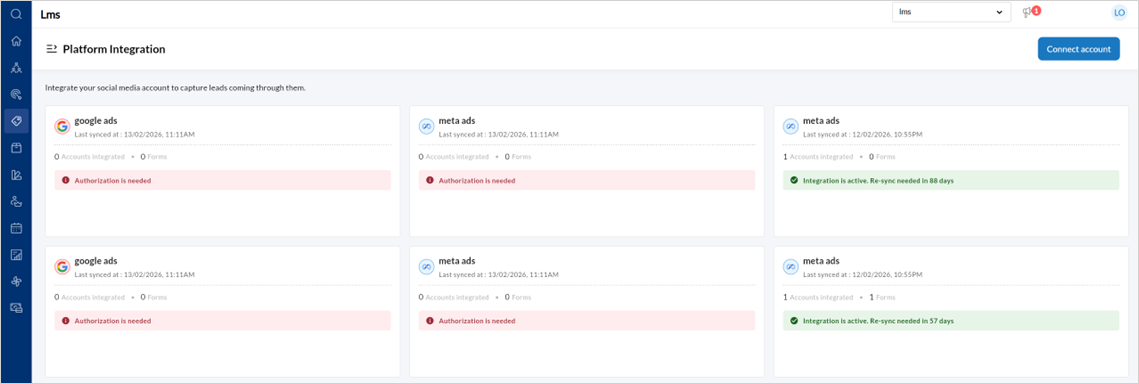
Integration Status Indicators
Authorization is needed – The account is not authenticated or authorization has expired.
Integration is active – The account is successfully connected.
Re-sync needed in X days – The integration will require re-authorization before expiry.
Connect a new account
Note
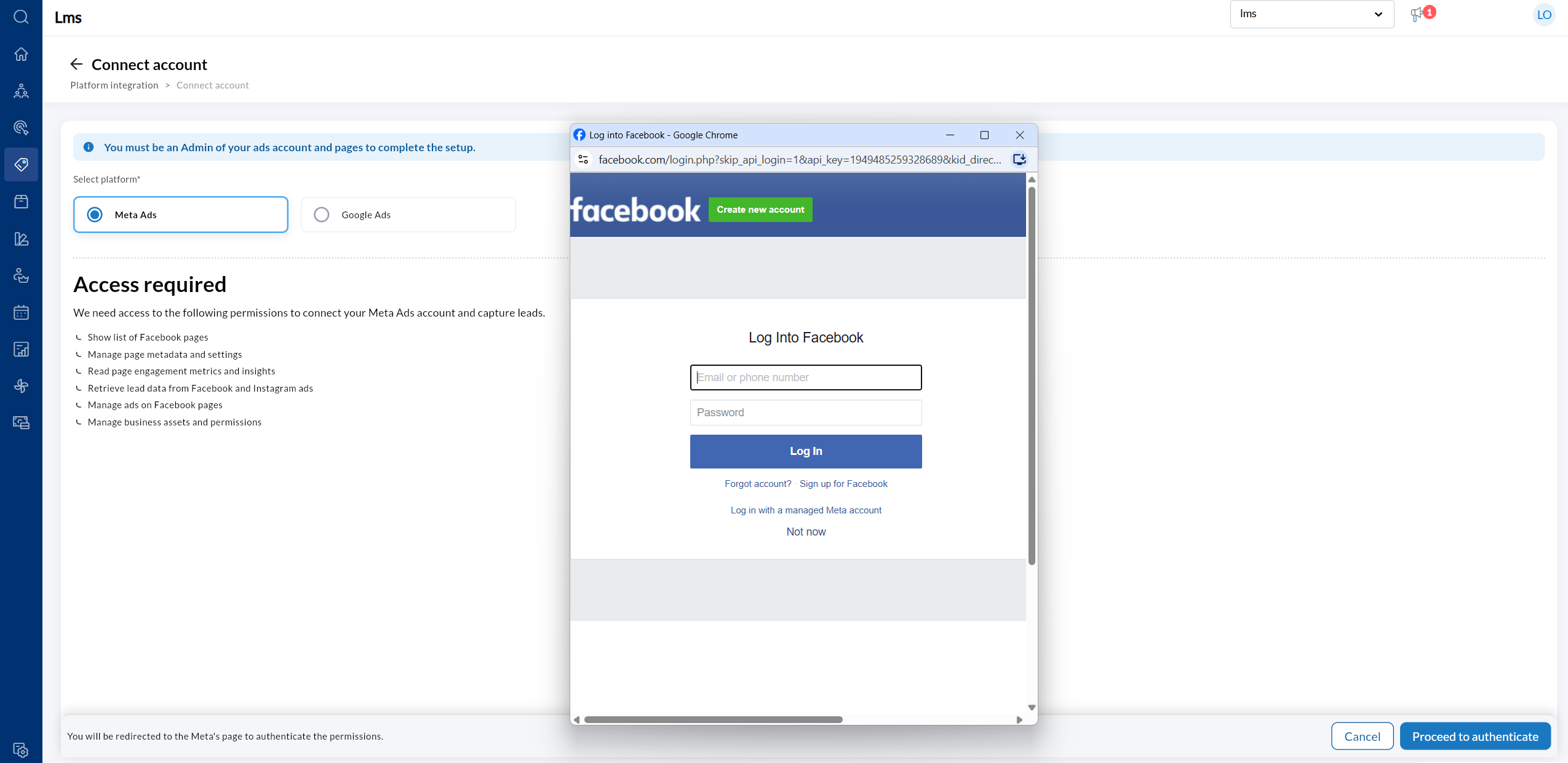
To connect to Meta ads, Zenoti requires you to have access to Facebook Pages list, Page metadata and settings, Page engagement metrics and insights, Lead data from Facebook and Instagram ads, and Business assets and permissions.
To connect to Google Ads, Zenoti requires you to have the permissions to fetch customer accounts, forms, and retrieve leads. It also requires you to get user email address and user profile information.
Click Connect account on the Platform Integration page.
Select the platform:
Meta ads
Google Ads
Review the Access required permissions listed.
Click Proceed to authenticate.
You will be redirected to the respective platform’s login page.
Sign in and grant the required permissions.
Manage an Existing Integration
Hover over the Integration card menus and click the 3-dot menu.
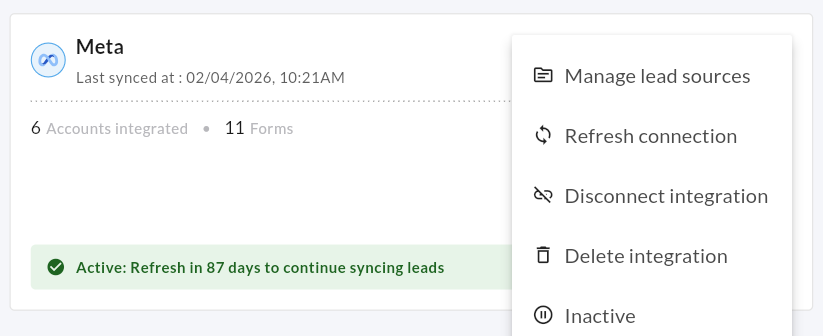
Click Manage lead sources to map each Meta form question (for example, First name, Email, Phone number) to a Zenoti lead field.
Click Unmapped to open a Manage form fields panel.
Ensure every field is mapped to a corresponding Master form field.
Continue to do so until all fields are mapped.
Click Define field properties to set
Lead stage
Source
Priority type
Lead type
Center
Assignee
Click Save form.
From the 3-dot menu, click Re-sync to refresh the integration.
Use this before the sync expiry date shown in the status banner.
You can toggle the integration between Active and Inactive states.
Select Disconnect account to stop the integration.
Enter a reason for disconnection, then click Proceed.
Click Delete to remove the integration.
Enter a reason for deletion, then click Proceed.
To reauthorize a failed integration,
Click Authorize from the 3-dot menu to reauthorize a failed integration.
Sign in and grant the required permissions.