Link leads to Zenoti guest profiles
Linking a lead to a Zenoti guest profile connects the lead record to the guest's full history in Zenoti — including past appointments, purchases, membership status, and loyalty points. This gives your team a complete view of the customer without switching between modules, and enables more personalized follow-ups.
When a lead is created, Zenoti automatically attempts to match it to an existing guest profile using the lead's email address or phone number. This matching also runs as a background job to catch any leads that were not matched at creation.
Match found: The lead is automatically linked to the matching guest profile.
No match found: Zenoti automatically creates a new guest profile and links it to the lead. If needed, you can change the linked guest from the lead detail page. Note that once you manually link a lead to a different guest, this action cannot be undone.
View the linked guest profile
When a lead is linked to a guest profile, a Linked guest profile banner appears at the top of the Details tab on the lead detail page. When a lead is linked to a guest profile, the Details tab on the lead detail page displays the following sections:
Linked guest profile banner — appears at the top of the Details tab showing the linked guest's name. Click the guest name to open their full Zenoti guest profile.
User details — displays the lead's contact information: Name, Phone, Email, Gender, and Description.
Lead assessment — displays the lead's current pipeline data: Sales stage, Priority, Assigned to, Created date, Last contacted, Centre, Lead type, and Source.
Pricing and transaction — displays the Listed price and Offered price associated with the lead. Click View Point of Sale (PoS) to open the POS window pre-populated with the linked guest's profile, where you can view their transaction history, apply memberships, process payments, and manage invoices.
Follow-ups — displays the Follow-up date, Expected close date, and Last contacted date. Click Book appointment to open the Booking Wizard with the linked guest's profile pre-loaded, showing their open appointments, due amounts, and membership status alerts.
Additional lead details — displays any custom fields captured through the lead generation form, such as custom text fields, dropdowns, checkboxes, and radio buttons configured in your Master form.
Manually link a lead to a guest profile
If a lead is not automatically linked, or if you need to connect it to a different guest profile, you can link it manually from the lead detail page.
Open the lead from the All Leads page.
On the Details tab, locate the Linked guest profile banner and click Change.
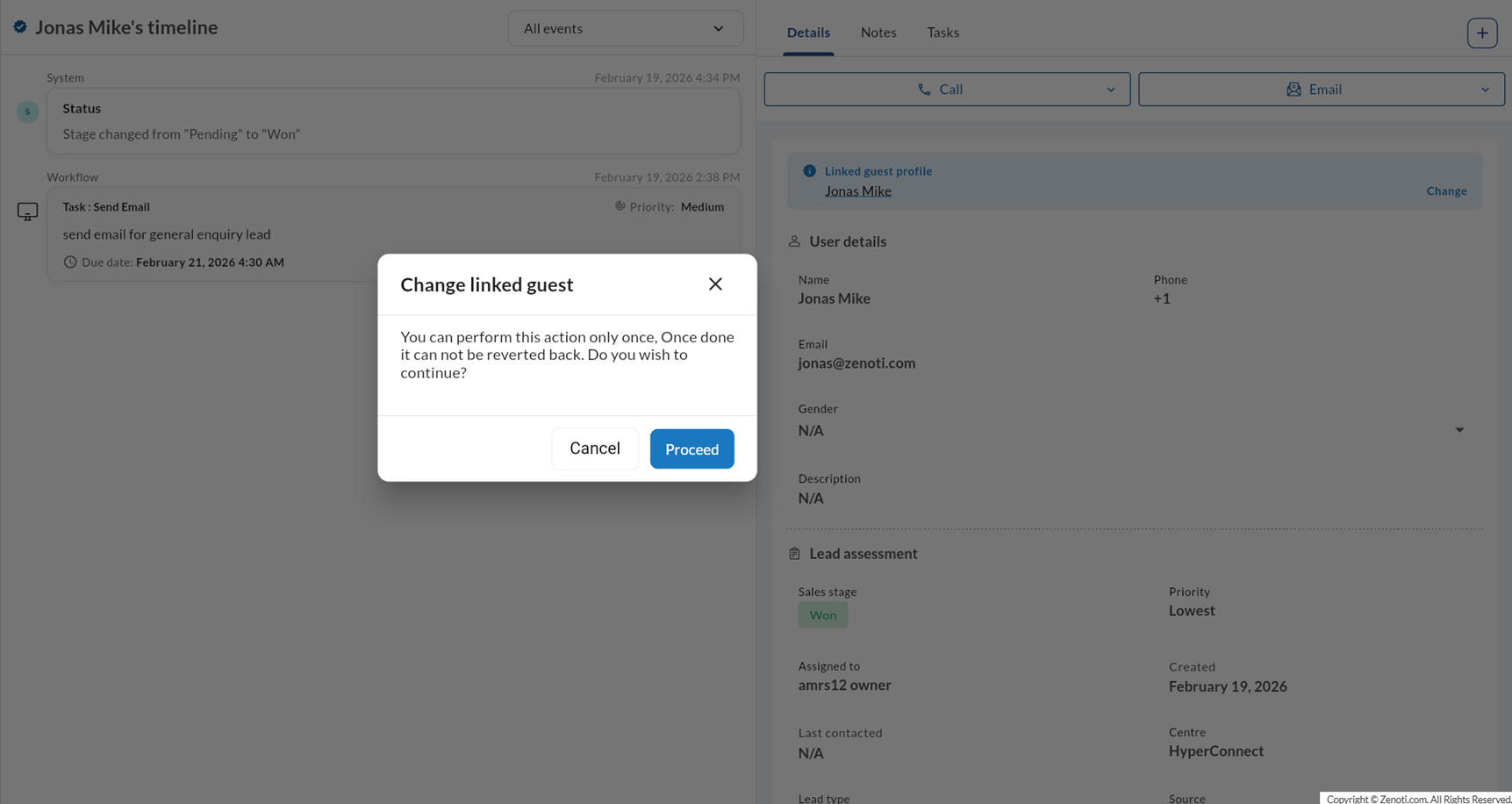
Click Proceed to continue, or Cancel to go back.
The Link to guest panel opens on the right. Enter the guest's name, phone number, or email address in the search bar.
Search results display matching guest profiles with their name, phone number, and email. Review the results to identify the correct guest.
Select a guest, then click Link guest to confirm.
The Linked guest profile banner updates to show the newly linked guest. Important: Linking a guest is a one-time action and cannot be undone. Verify the correct guest profile before proceeding.
Create a new guest profile from a lead
If the lead does not exist in Zenoti as a guest, you can create a new guest profile directly from the Link to guest panel.
Open the Link to guest panel using the steps above.
If no matching guest is found, click Create a guest profile at the bottom of the panel.
The Create Guest form opens with the lead's email pre-filled.
Complete the guest details as needed and click Create guest and launch POS.
The new guest profile is automatically linked to the lead.
Considerations
Guest linking happens automatically on lead creation when a matching email or phone is found in Zenoti.
If automatic linking does not occur, a background job runs periodically to retry unmatched leads.
Changing a linked guest is a one-time, irreversible action — confirm the correct guest before proceeding.