Configure lead stages
Lead stages represent the various steps in your sales journey – starting from the very first contact with a potential customer or lead to either converting them into a paying customer or losing the lead or opportunity. By tracking lead stages, your business can monitor progress, ensure timely follow-ups, and measure conversion performance at each stage of the funnel. For example, you may create lead stages such as New lead, Contacted, Qualified, Closed - Won, Closed - Lost.
Lead stages provide visibility into the health of your sales pipeline, hold teams accountable for follow-ups and deadlines, highlight where leads drop off to improve conversion, and support accurate revenue forecasting by tracking progression through each stage.
At the organizational level, navigate to Lead Management > Lead Settings > Lead Stages.
The page displays all your lead stages.
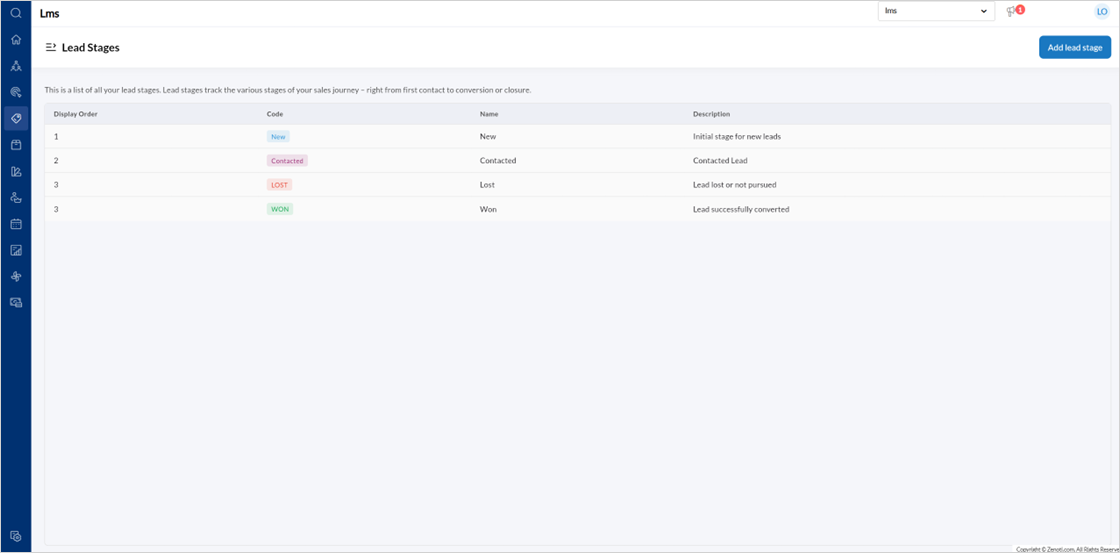
To create a new lead stage, click Add lead stage.
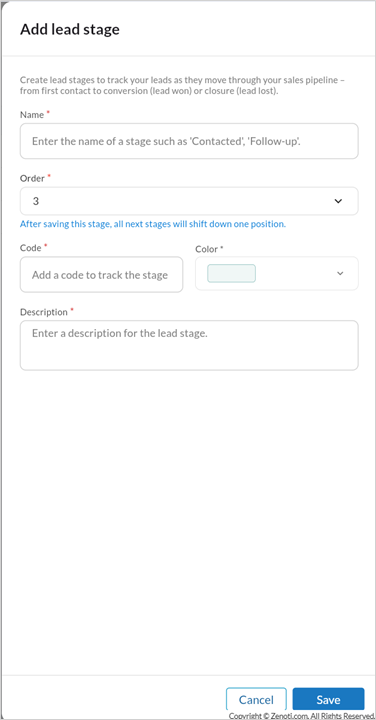
Enter the stage Name, Order, Code, Color, and Description.
Click Save.
Note
Changing the order automatically adjusts other stages.
To edit a Lead stage,
Hover over the specific Lead stage listing and click the edit icon.
Edit the Name, Order, Code, Color, and Description.
Click Save.